Agent Versioning
How to version an Agent
After creating your Agent, you can create new versions to update or improve its content.
Versioning rules
- To create a new version, you must select an existing version to use as the base.
- For shared Agents meaning Agents at the Account level or in Spots with multiple members:
- Only one draft is allowed at a time. If one user begins creating a new version, no other user can start another version until the first draft is published or discarded. This rule prevents conflicts when editing shared Agents.
FAQ
- How do I know if the version has been published? A label appears next to your Agent’s name indicating whether it is Published or Unpublished.
Steps for versioning
Step 1. Access the StackSpot AI Portal and log in;
Step 2. Go to the ‘Agents’ section. Choose the Agent you want to version, and click the ‘Settings’ tab;
Step 3. Click the ‘Create a new version’ button;
Step 4. Make the necessary changes. The version will be marked as ‘Unpublished’. You can test the new version using the chat;
Step 5. If everything is correct, click ‘Save new version’.
See the example below:
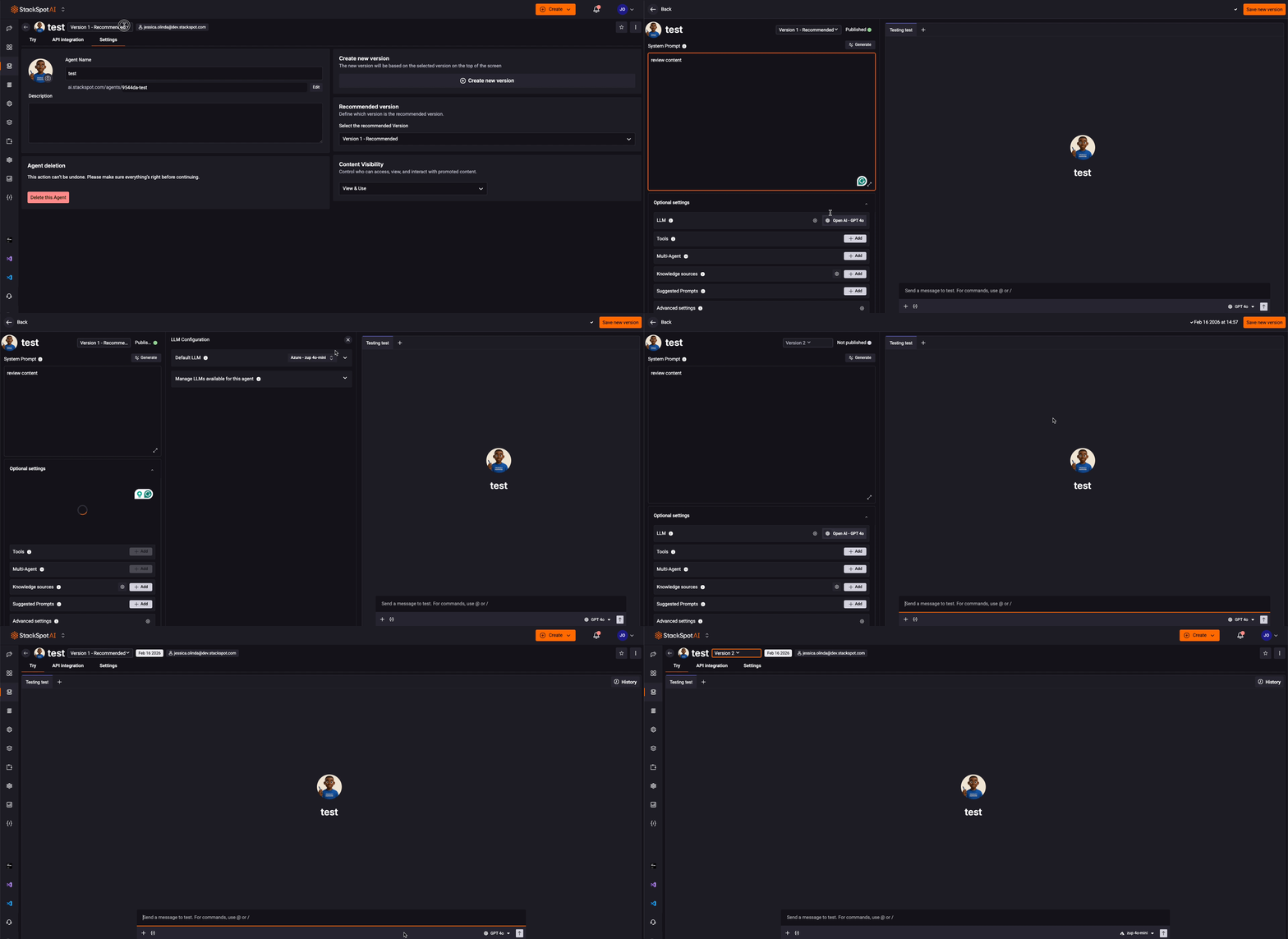
Your new version has been created.
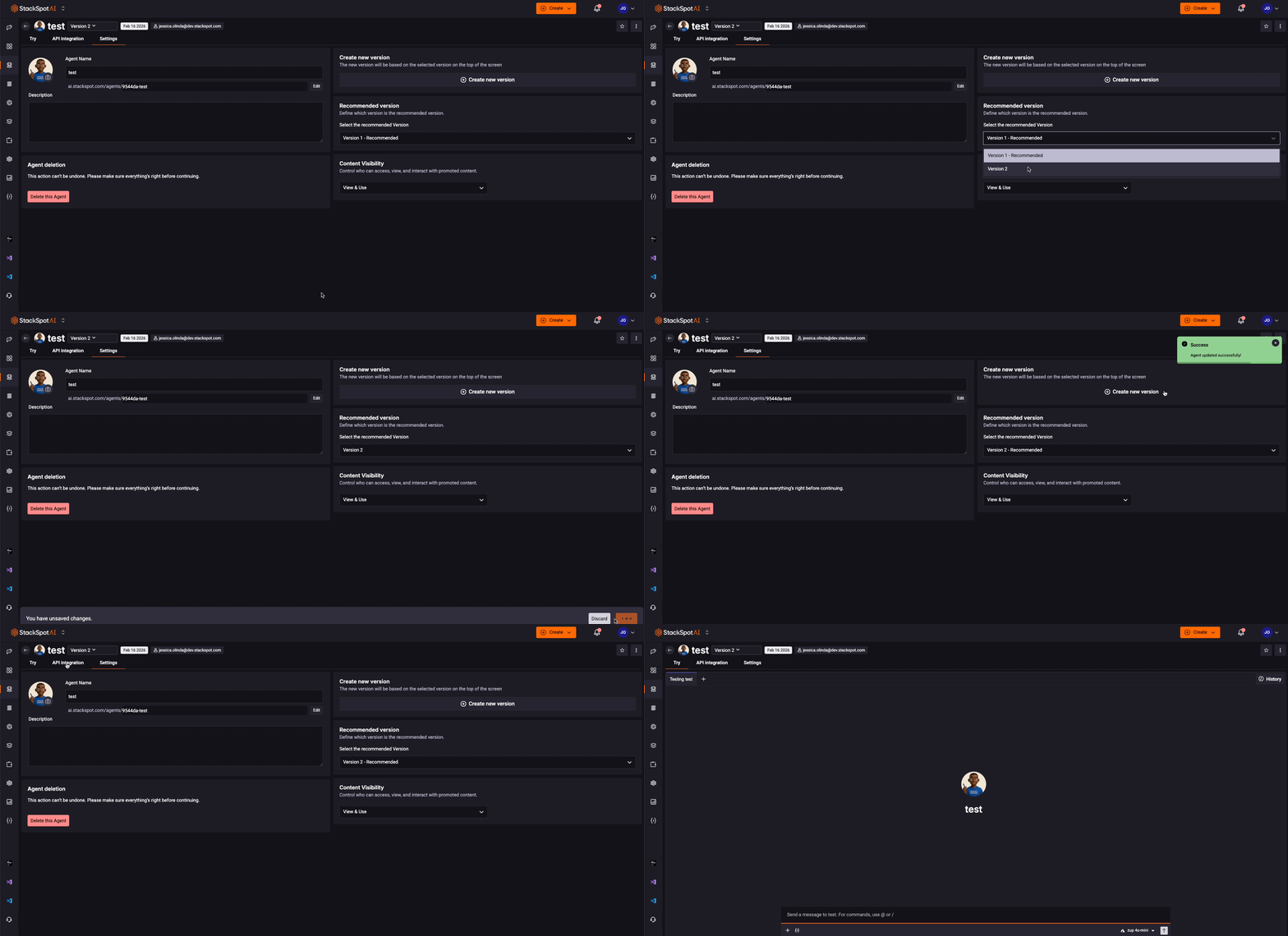
How to set a version as recommended
Follow the steps below:
- Select the Agent you want, and go to the ‘Settings’ tab;
- Select the version you want to set as Recommended;
- Click ‘Save’.
The Recommended version will be used automatically if the user does not choose a specific version when using the content.