How to Enable the VS Code Extension for WSL
Follow the steps below to enable the StackSpot AI extension in Visual Studio Code using WSL (Windows Subsystem for Linux):
Step 1. Open your Visual Studio Code;
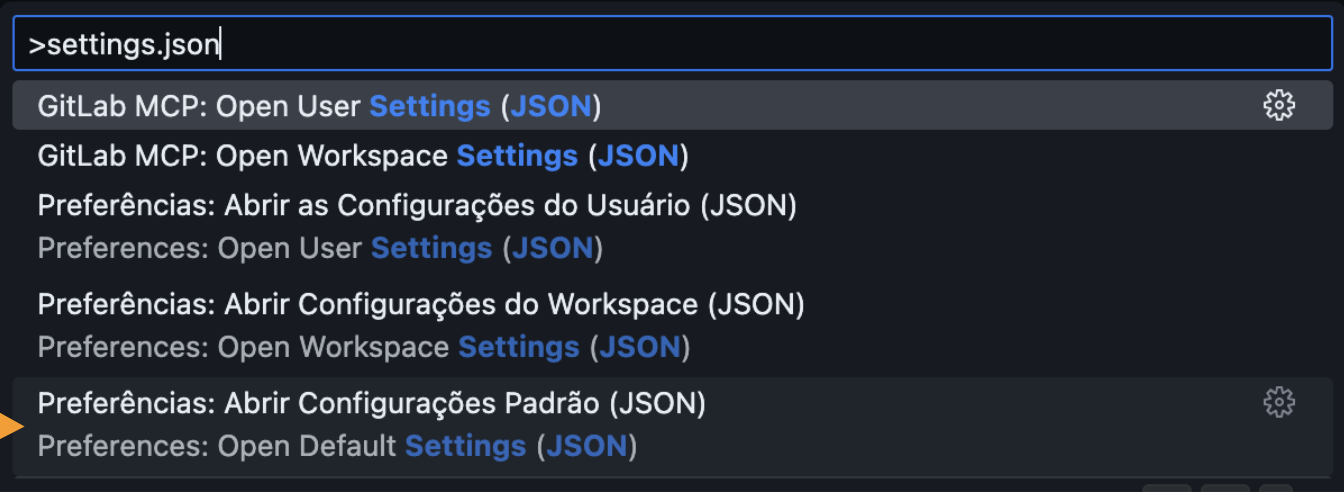
Step 2. Open the settings.json file;
- Open the Command Palette (‘View > Command Palette’) and type
settings.json; - Click on ‘Preferences: Open Settings (JSON)’
On Windows, use the shortcut: Ctrl + Shift + P.
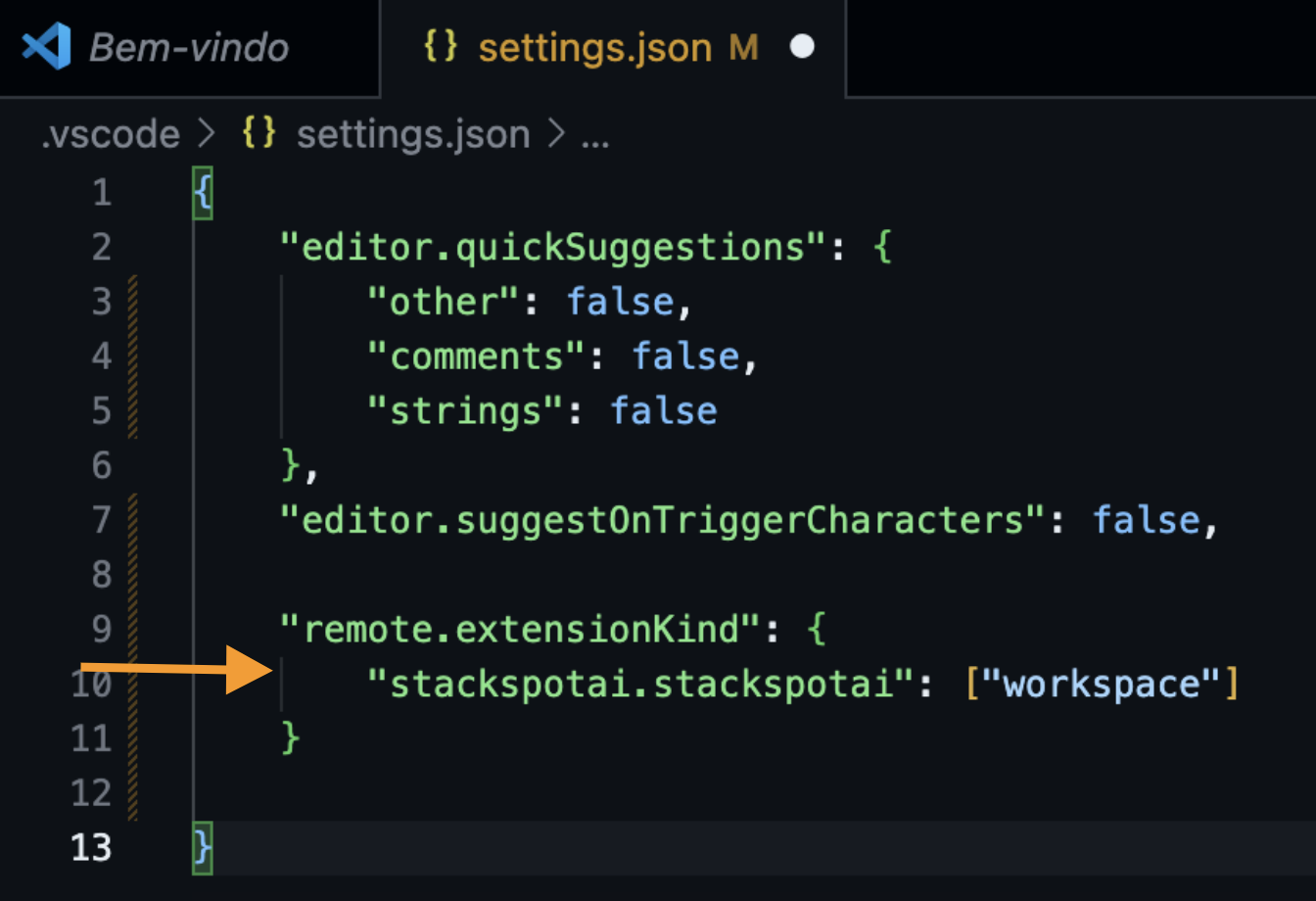
Step 3. Add the following configuration to the settings.json file:
"remote.extensionKind": {
  "stackspotai.stackspotai": ["workspace"]
}
See an example below:
Step 4. Go to the 'Extensions' tab and search for StackSpot AI in the search bar. Install the extension in WSL;
Step 5. Restart the StackSpot IDE. After that, you will be able to use the extension natively in your WSL environment.
For more information on using WSL in VSCode, check the Visual Studio Code documentation.