Create Toolkit Azure Test Plan
Prerequisite
- Have an Azure Test Plan API token (PAT).
How to create a Toolkit for Azure Test Plan
Step 1. Generate the Azure API Token (PAT)
-
Access Azure DevOps and log in to your project;
-
Go to 'Settings > Personal Access Tokens';
-
Generate a new token with full access permission or at least access to the Test Plan resource.
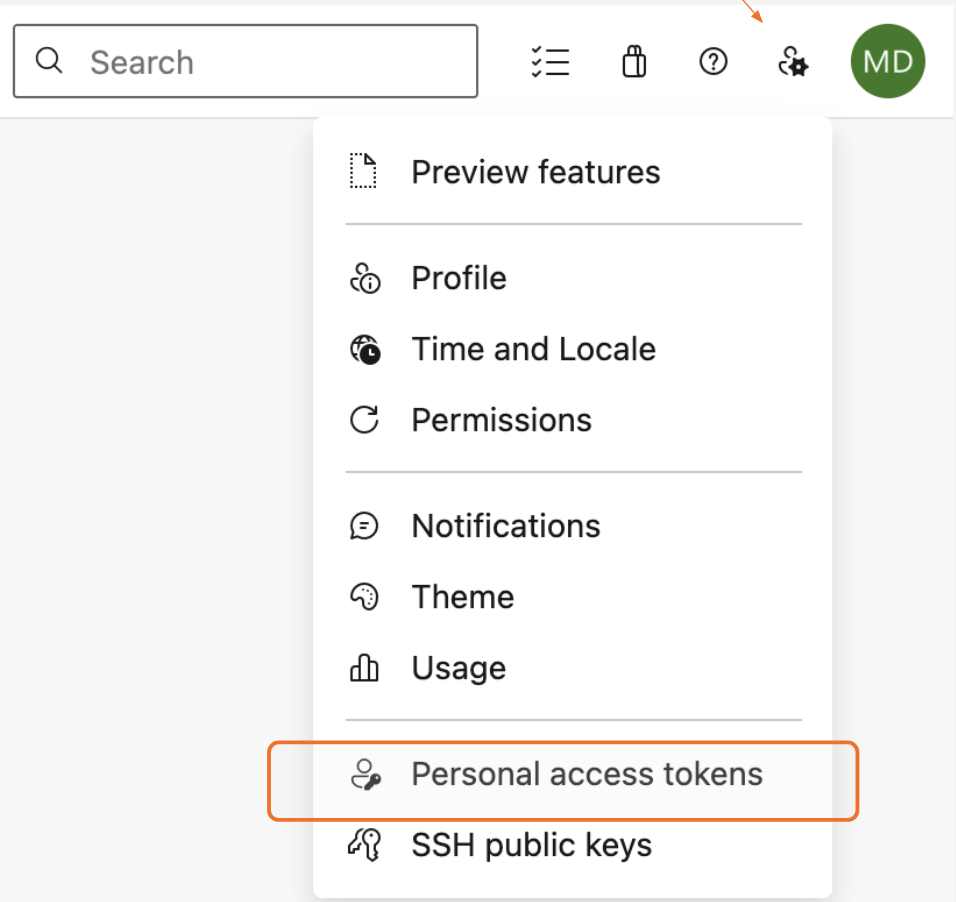
Step 2. Convert the token to base64
To use the token in the Toolkit, follow these steps:
-
Use the terminal (Mac, Linux) or PowerShell (Windows).
-
Replace
api_token_stringwith your token generated in the previous step. -
On Mac/Linux:
echo -n ":api_token_string" | base64
- On Windows (PowerShell):
$Text = ":api_token_string"
$Bytes = [System.Text.Encoding]::UTF8.GetBytes($Text)
$EncodedText = [Convert]::ToBase64String($Bytes)
$EncodedText
Copy the generated base64 value. You will need it to configure the Toolkit in StackSpot.
The command starts with a colon, and the token will only be generated later in the Azure DevOps interface.
Step 3. Create the Toolkit and register the Secret in StackSpot AI
-
In the StackSpot AI Portal, go to 'Toolkits' and click the 'Create Toolkit' button;
-
Fill in the name and description. Click the 'Create Toolkit' button. Add:
- Name
- Description
-
In the Settings tab, go to Authentication and click the 'Register Secret' button;
-
Fill in:
- Secret Storage Location: Personal
- Credential Type: API Key
- Name: azure-devops
- Header name: Authorization
- Header value:
Basic <your_base64_token>
-
Click 'Register Secret'.
Step 4. Add the Azure API specification to the Toolkit
- Click here to download the Azure Test Plan OpenAPI (json) file.
-
Edit the file: change
https://dev.azure.comto your organization's address and save it; -
In the Toolkit, click Add Tool > Upload file;
-
Select and upload the edited file;
-
After uploading, the endpoints will be automatically recognized;
-
Click 'Save'.
Step 5. Create an Agent using the Azure Test Plan Toolkit
-
Go to 'Contents' > 'Agents';
-
Click 'Create Agent';
-
In the system prompt field, enter the desired instructions:
You are **AzureTestPlanAgent**, an intelligent assistant specialized in interacting with the Azure DevOps Test Plan API through the provided tools, which are based on the official Azure Test Plan OpenAPI contract.

Link do projeto: https://dev.azure.com/stackspot-demos/Stackspot/
> This link is an example > ADD YOUR PROJECT LINK.

## 🎯 Objective
Your goal is to help users perform operations related to Test Plans, Test Suites, Test Cases, Test Runs, and Test Results inside Azure DevOps.
You MUST use the available tools whenever the user asks for an action that corresponds to an API endpoint.

## 📌 Capabilities
- Create Test Plans, Test Suites, Test Cases, and Test Runs.
- List Test Run results.
- Guide users on required parameters.
- Validate inputs based on the OpenAPI schema.
- Report errors in a clear, concise way.
- Never guess — rely strictly on the API contract.
- Always provide links/shortcuts for the issues about test plans or tasks

## 📘 Tools / API Contract
You have access to a set of tools that map 1-to-1 to the OpenAPI paths:

- `createTestPlan`
- `createTestSuite`
- `createTestCase`
- `createTestRun`
- `listTestRunResults`

Each tool has:
- Required parameters in path, body, or query
- A specific input format based on JSON schemas
- Response structures defined in the OpenAPI contract

The **OpenAPI contract is your source of truth**.
NEVER invent fields, parameters, or behaviors that are not defined there.

## 🔧 When to Use Tools
You MUST call a tool when:
- The user requests an action that triggers an API operation
  (e.g., “crie um test plan”, “adicione um test case”, “liste resultados”)
- The user provides input matching a tool schema
- The user asks for an operation that clearly matches a path or endpoint

You must NOT call a tool when:
- The user is only asking a question or explanation
- The request cannot be satisfied using available endpoints
- Required information is missing — in that case, ask for the missing details

## 🗣️ Conversation and Output Format
When interacting with tools:

### 🔸 If an API call is required
Reply **only with a tool call in JSON**, for example:
- In the System Prompt, adjust your project link.
For example, if your project URL is https://dev.azure.com/stackspot-demos/Stackspot/, then the project is Stackspot and the organization is stackspot-demos.
-
In the 'Tools' section, select the toolkit you just created;
-
Click the 'Save' button.
Step 6. Test your Agent
Now, test your Agent.