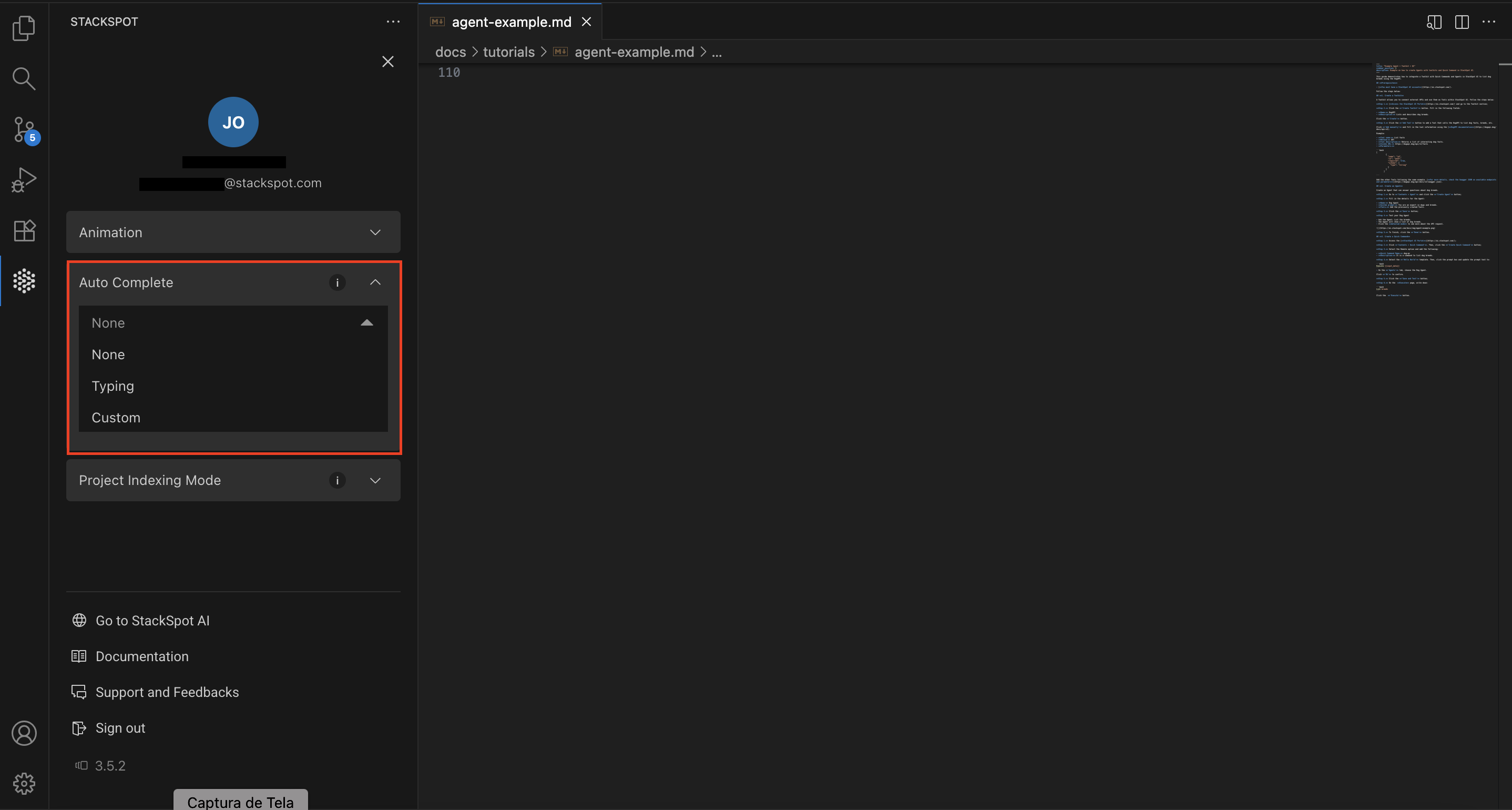
Auto Complete
Auto Complete offers contextual code recommendations. It provides complete function suggestions based on declared functions and generates code blocks from natural language comments.
When Auto Complete is enabled in either mode, you can add inline comments in your editor, and the autocomplete feature will generate the code described in those comments. You can easily accept, reject, or modify the suggestions provided by Code Suggestions.
Follow the instructions below:
Auto-complete works only when your file is saved and in a supported programming language format. See the supported languages:
abap,ada, adb, ads, aes, asm azcli, bat, bicep, c, cbl, cc,clj, cljc, cljs, cls, cmd, cob,coffee, cpp, cs, cshtml, csp, css,cxx, d, dart, dats, dax, dockerfile, ecl, edn, erl, ex, exs, f, f77, f90, flow, for, fs, fsi, ftl, go, gql, graphql, groovy,gsh, gvy, gy, h, handlebars, hats,hbs, hcl, hh, hpp, hrl, hs, htm, html, hxx, ini, java,
jl, js, json, jsx, kt, kts, less,lex, ligo, liquid, lisp, lua, m,m3, md, mjs, ml, mli, mligo octave, pas, php, pl, pla, pm, pp, pq, prg, proto, ps1, psd1, psm1, pug, py, qs, r, rb, redis, rego, rkt, rq, rs, rst, sats, sb, scala, scm, scss, sh, sol, sql, st, sv, swift, tcl, tf, ts, tsx, twig, txt, v, vb, xml, yaml,yml.
Step 1. Access the StackSpot AI IDE;
Step 2. In the ‘Configuration' section, click on the ‘AutoComplete Options’ button;
Step 3. Choose one of the available options:
- None: Disables the autocomplete.
- Typing Mode: Autocomplete is triggered when you stop typing.
- Custom Mode: Autocomplete will be triggered manually using a defined shortcut in this mode. You can change this shortcut in the IDE settings. You can use Ctrl + Shift, for example.