Project Index
You can index files to gain more context when using StackSpot AI. When you integrate your recent work, StackSpot AI can provide relevant code suggestions and solutions tailored to your context. There are two modes:
1. Relevant Mode (Default)
In this mode, StackSpot AI will analyze the latest files used in your IDE. Any changes made in the open tabs will be processed in the background to provide tailored solutions for your project.
This is the default mode.
2. Full Mode
StackSpot AI will process all files in your open project while in this mode. To ensure proper processing, we will ignore the files listed in the .stktignore and .stackspotignored files, which can be added to the root of your project. Any changes made to the files in this open project will be indexed in the background.
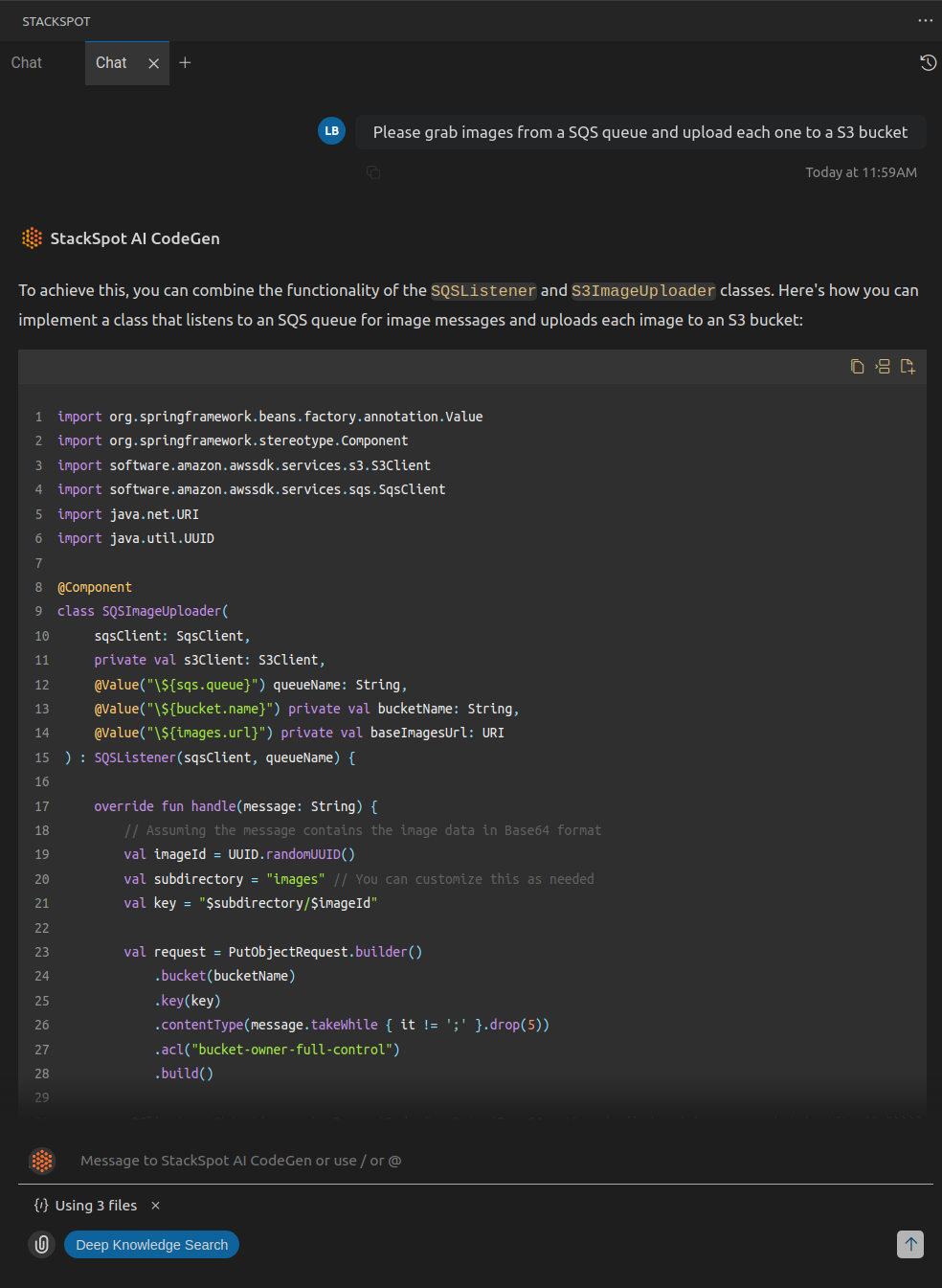
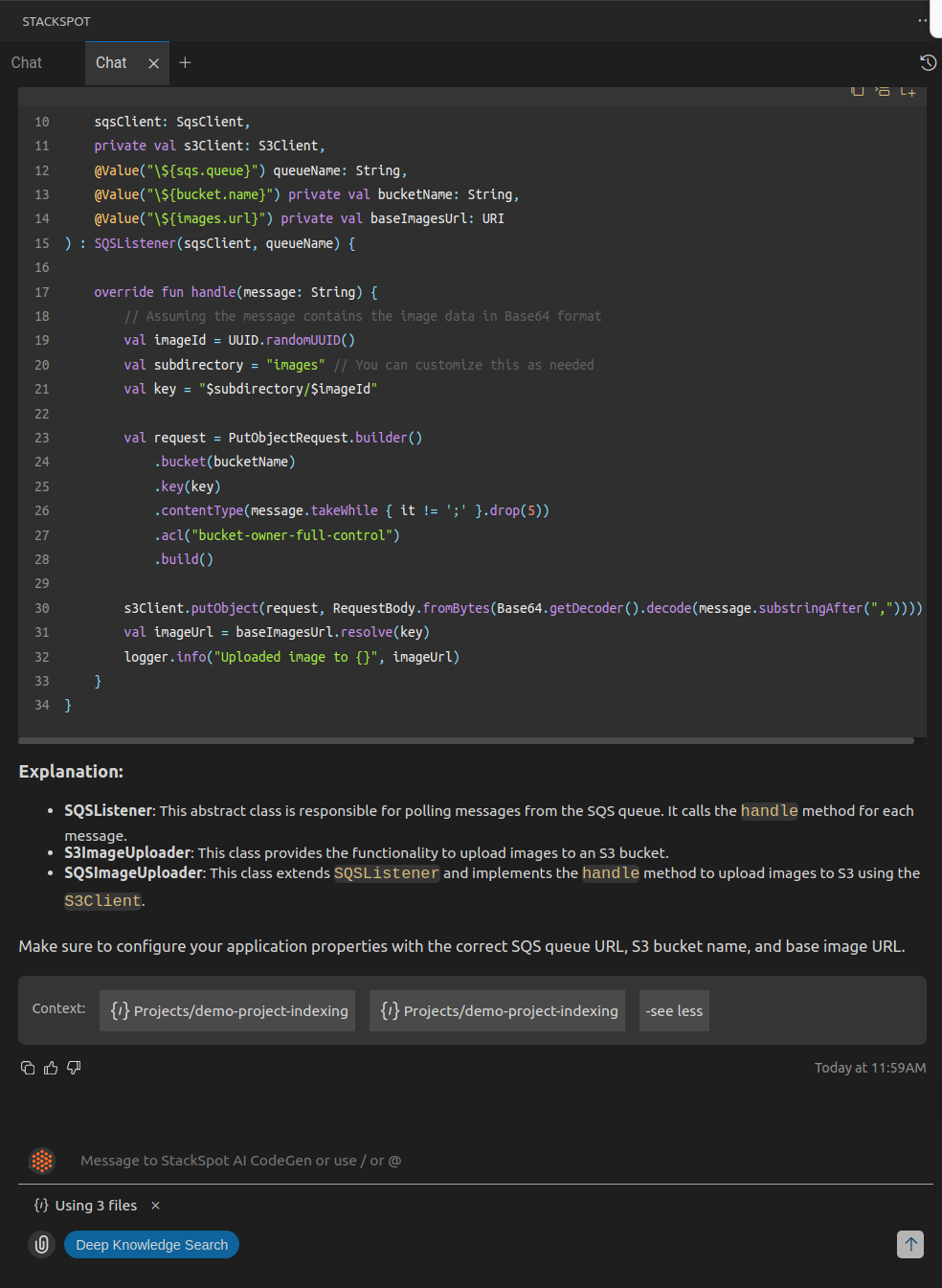
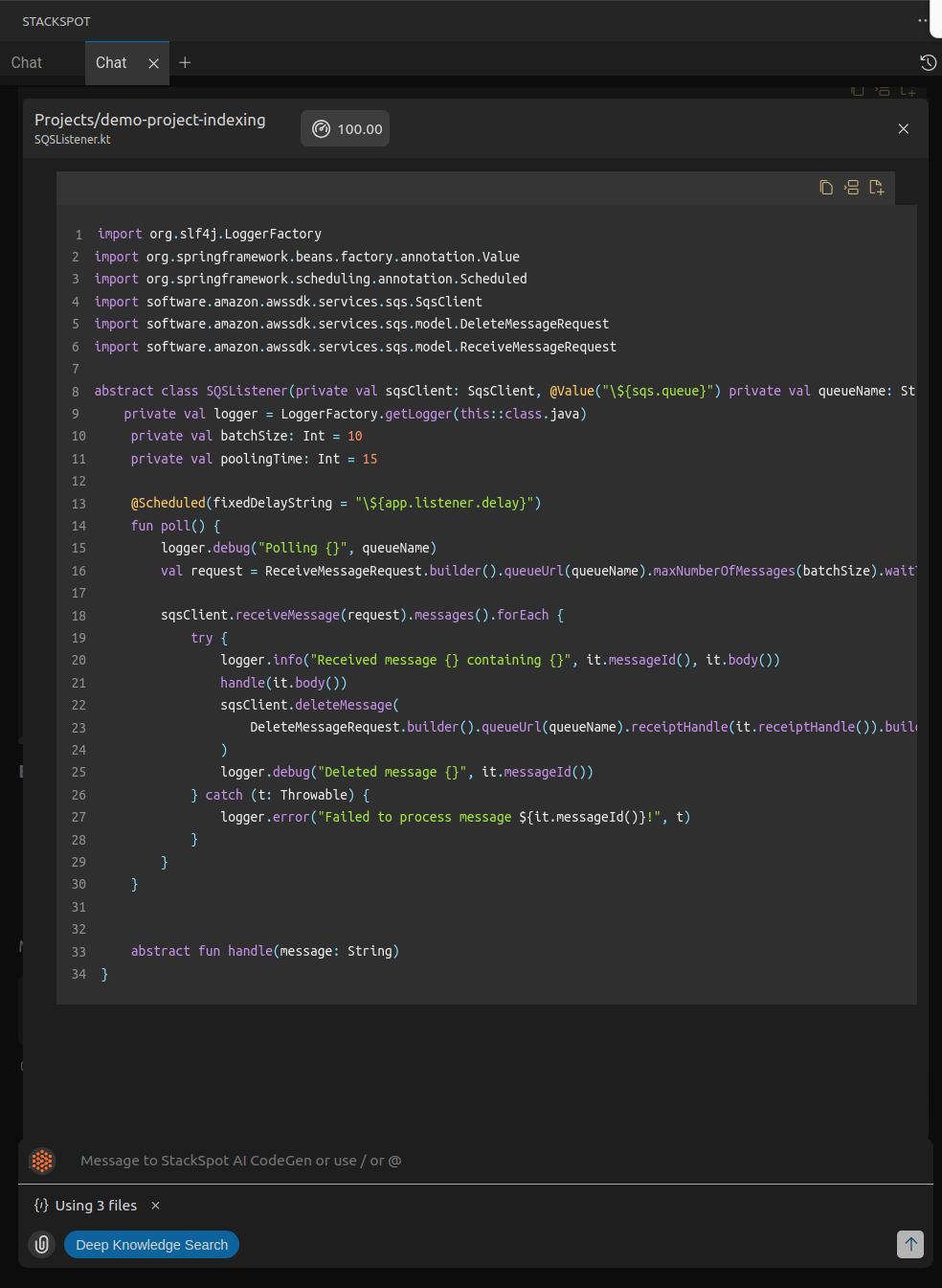
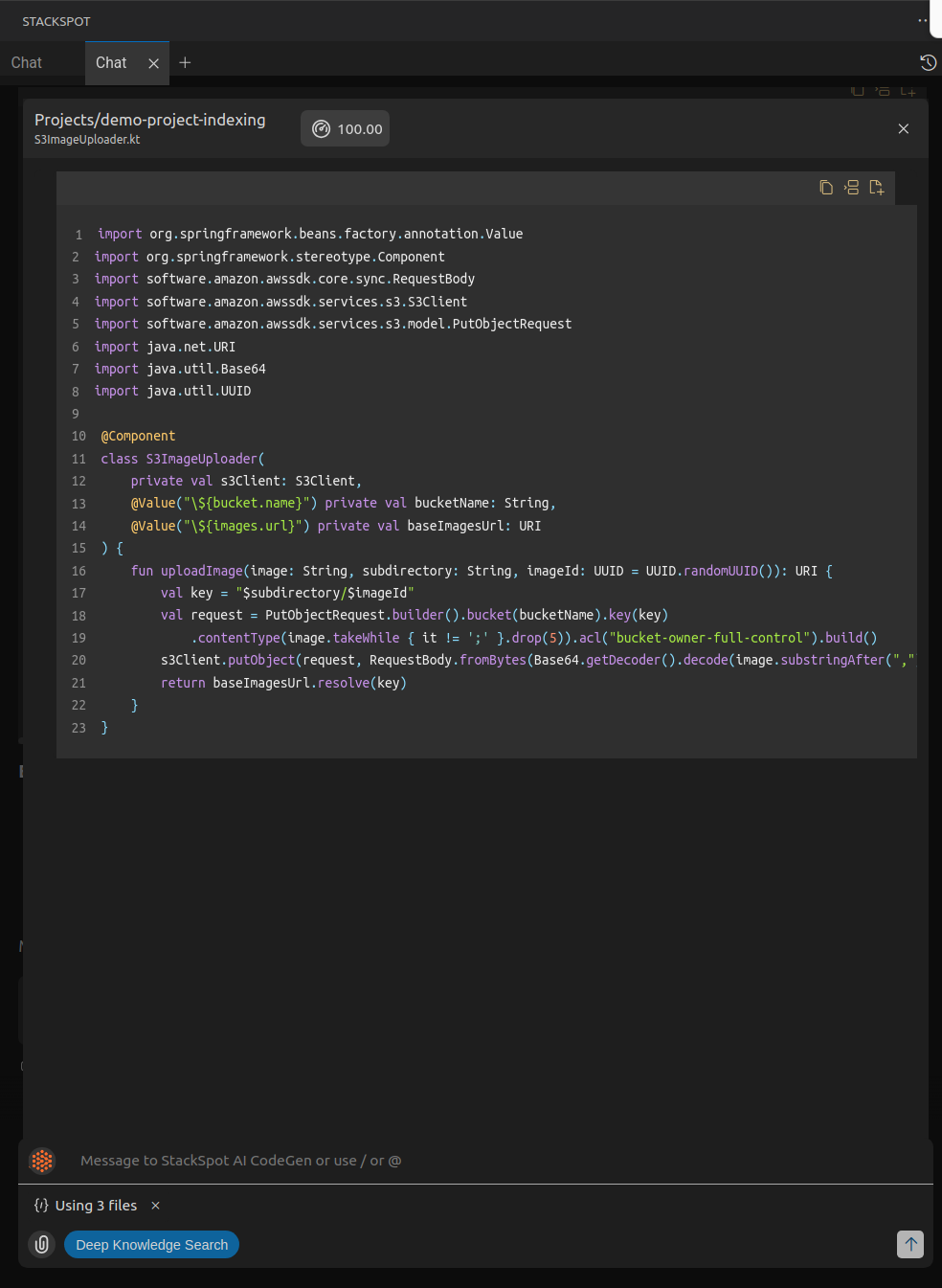
After you index your project and ask a question, StackSpot AI will look for relevant information and provide answers by highlighting the files used to generate those answers. This will be displayed in a small box below the chat. To explore which info on this file was used, you can click on the box.
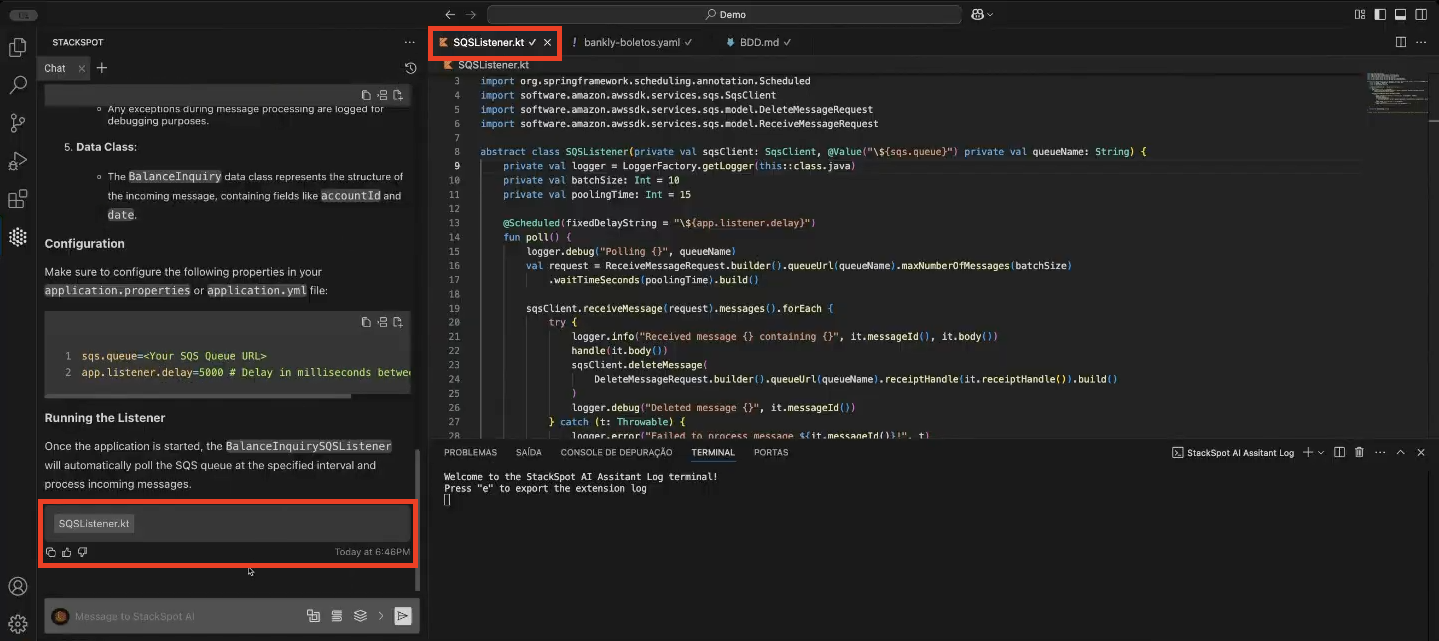
How to index your project
-
StackSpot AI does not index files or folders that are hidden, specifically those whose names begin with a dot (
.). -
If you upload many files to StackSpot AI, the indexing may take longer. Please wait until the indexing is complete.
Project indexing works only when your file is saved and in a supported programming language format. See the supported languages:
abap,ada, adb, ads, aes, asm azcli, bat, bicep, c, cbl, cc,clj, cljc, cljs, cls, cmd, cob,coffee, cpp, cs, cshtml, csp, css,cxx, d, dart, dats, dax, dockerfile, ecl, edn, erl, ex, exs, f, f77, f90, flow, for, fs, fsi, ftl, go, gql, graphql, groovy,gsh, gvy, gy, h, handlebars, hats,hbs, hcl, hh, hpp, hrl, hs, htm, html, hxx, ini, java,
jl, js, json, jsx, kt, kts, less,lex, ligo, liquid, lisp, lua, m,m3, md, mjs, ml, mli, mligo octave, pas, php, pl, pla, pm, pp, pq, prg, proto, ps1, psd1, psm1, pug, py, qs, r, rb, redis, rego, rkt, rq, rs, rst, sats, sb, scala, scm, scss, sh, sol, sql, st, sv, swift, tcl, tf, ts, tsx, twig, txt, v, vb, xml, yaml,yml.
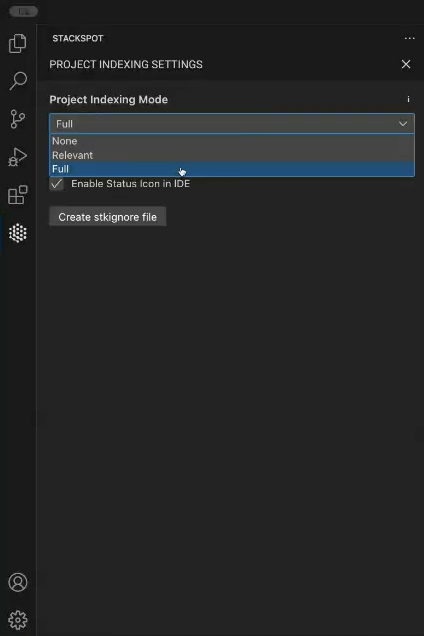
Your project is indexed as "Relevant" by default. To change it to "Full" or "None," follow the steps:
Step 1. Access your IDE; in this example, it's Visual Code;
Step 2. Click on the StackSpot Extension extension;
Step 3. Click on the ‘More Options‘ or ‘StackSpot Settings‘ button;
Step 4. Select the ‘Project Indexing’ checkbox;
Step 5. Choose the option you want:
- None
- Full
See an example below:
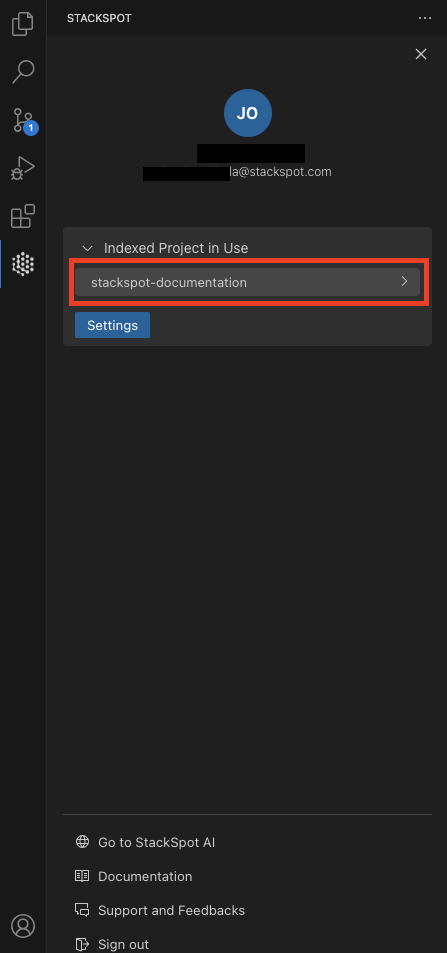
Indexed Project in Use
You can check the file tree in your IDE and control what is indexed or not.
Step 1: Click on the ‘More Options‘ button;
Step 2: Click on your project name to access the files tree;
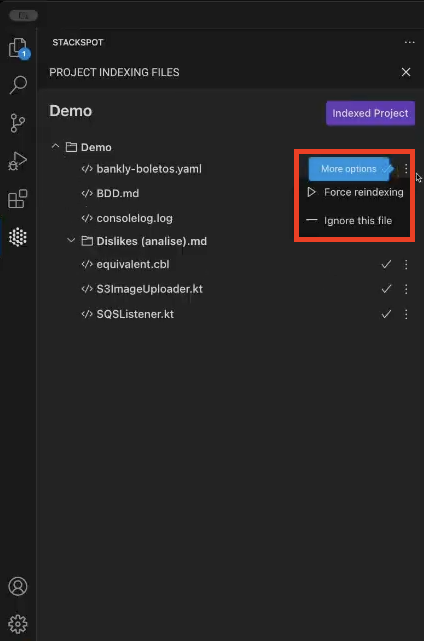
Step 3: After viewing the file tree, click the ‘More Options‘ button. You will have the following options:
- Force Reindexing: Use this option if you encounter a problem with indexing.
- Ignore the File: This option adds the file to the
stackspotignorelist to prevent it from being indexed.
You cannot delete Knowledge Objects individually from "Project Indexing" Knowledge Sources that have already been indexed.
Creating .stktignore files
Creating a .stktignore file effectively prevents the indexing of designated project files. For optimal results, ensure you list all the files you want to exclude from indexing.
Follow the steps:
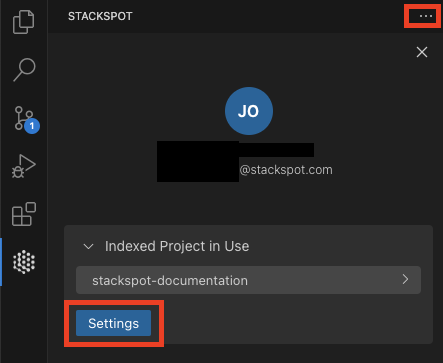
Step 1. Click on the ‘More Options‘ button, then click on the ‘Settings‘ button;
Step 2. Click on the create .stktignore file button;
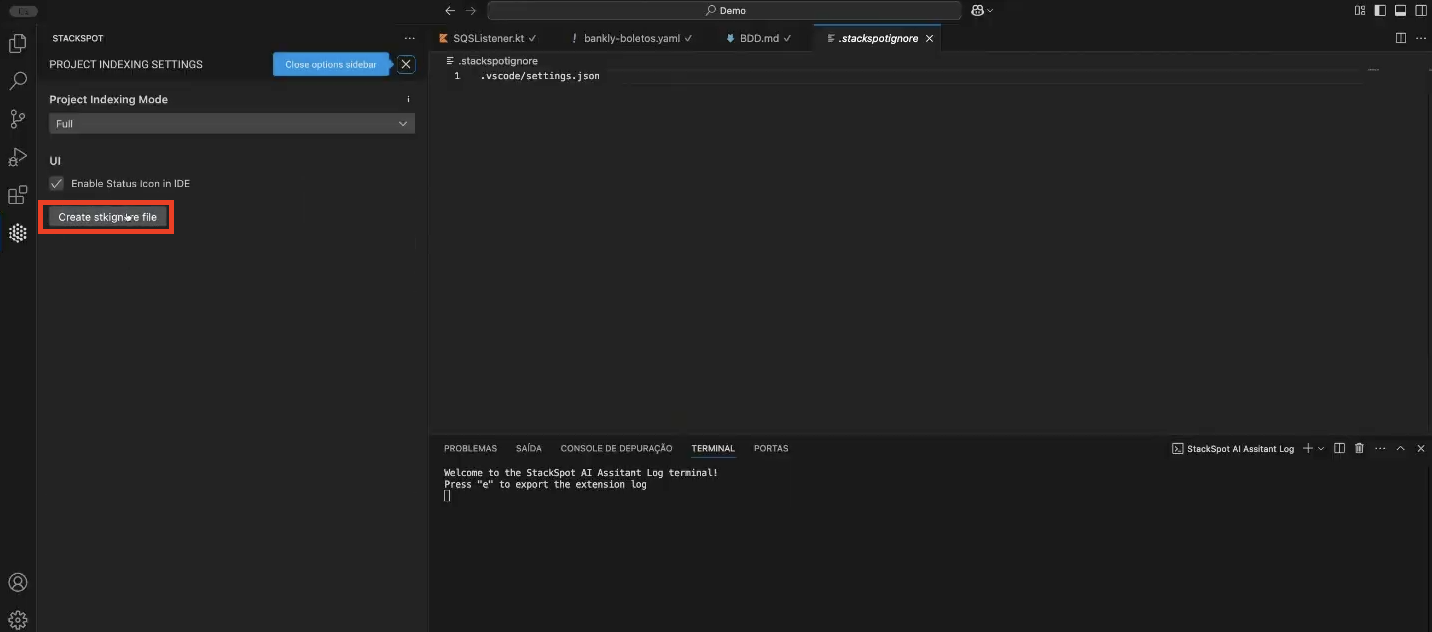
Step 3. List the names of the files you don't want to index.
UI
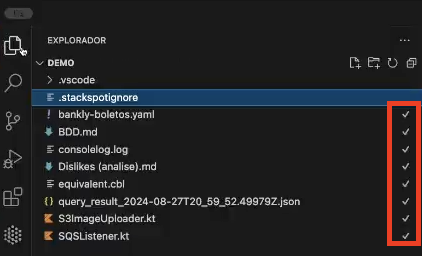
The ‘Enable Status icon in the IDE‘ button lets you view specific icons that indicate the IDE's indexing status. You can find the icons in the files and file tree when enabled.
See it below:
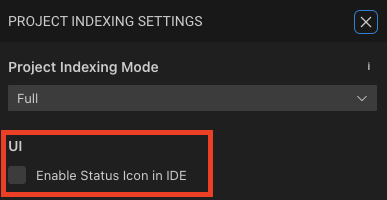
- Queue: Added to the queue to be indexed.

- A cloud sign: Uploading
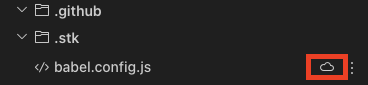
- Check mark sign: File indexed.
Deep Knowledge Search
Once your project is indexed, StackSpot AI provides more comprehensive answers. StackSpot AI goes beyond a basic similarity search by activating the Deep Knowledge Search feature. It delves into your project's Knowledge Objects and sends relevant files to the Language Model (LLM) to collect additional information. This process allows StackSpot AI to determine which files to utilize, resulting in improved query responses.
How to enable it?
You can enable Deep Knowledge Search in your IDE by clicking the button. It works with indexed project files. See the example below:
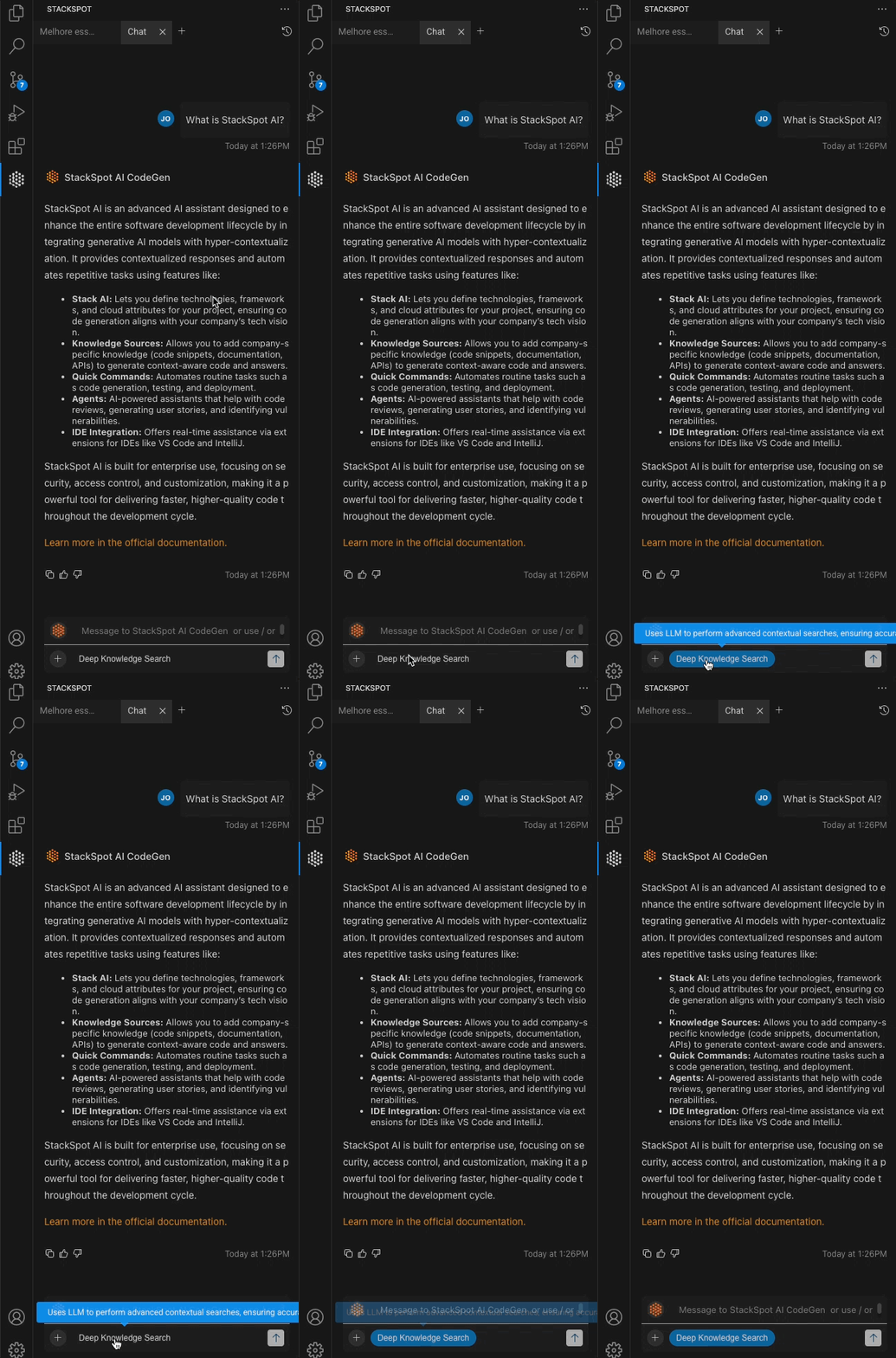
Deep Knowledge Search is available only if you have indexed projects.
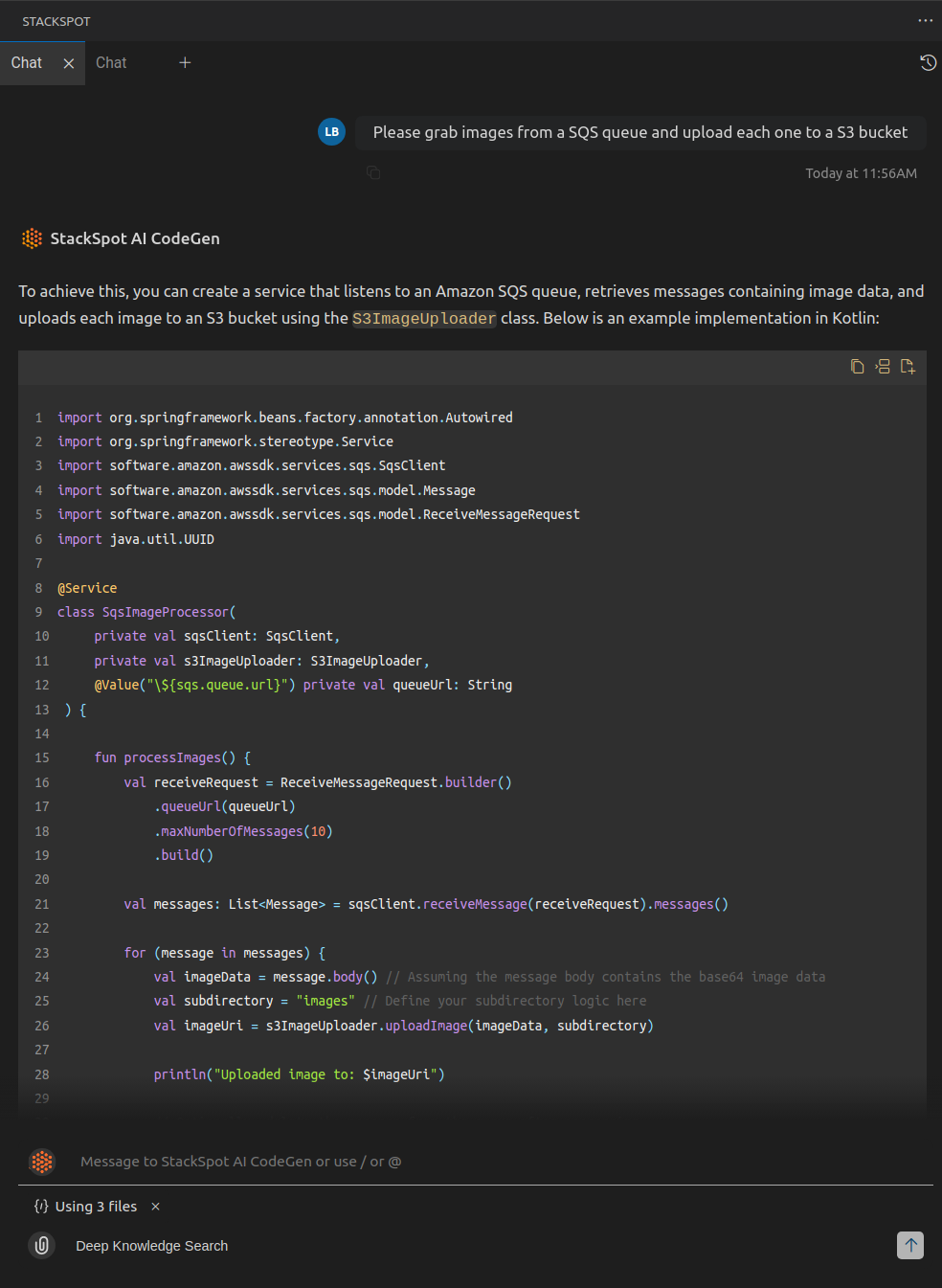
Example without Deep Knowledge Search
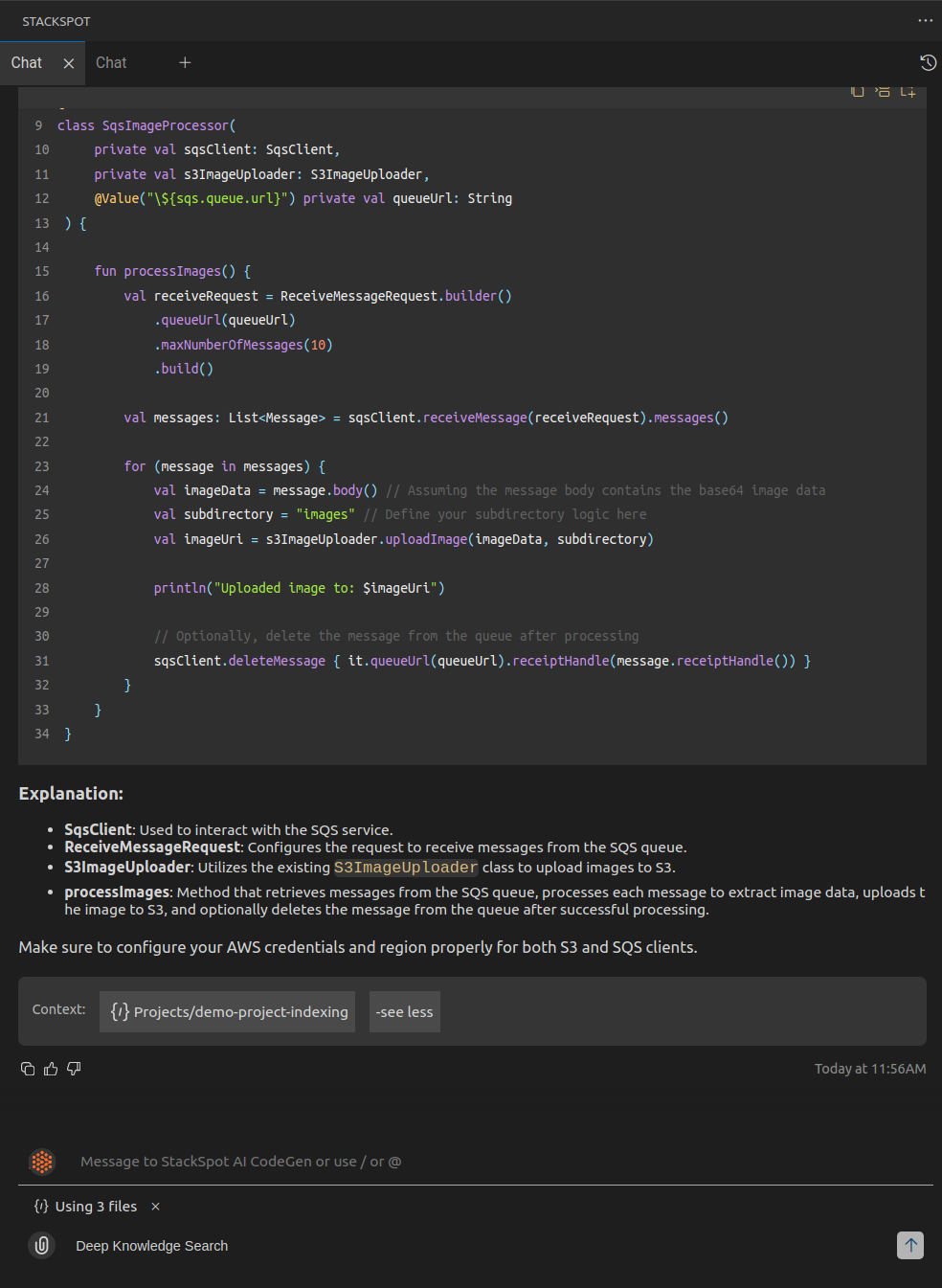
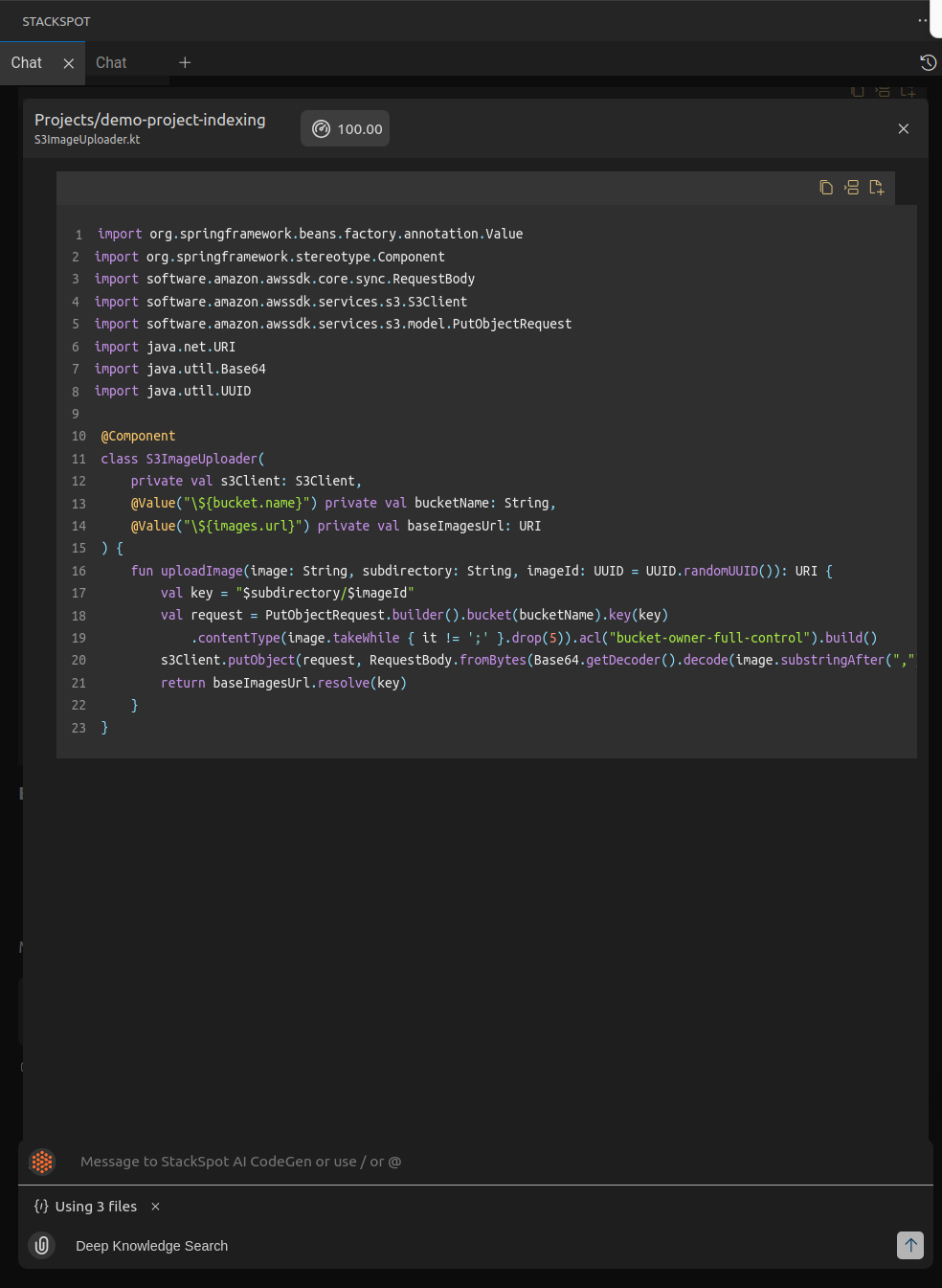
Example using Deep Knowledge Search