Customize LLMs
To customize LLMs, you must be either an Account Holder or an Account Administrator.
What does it mean to customize an LLM?
In your StackSpot AI account, you can select and activate the available Large Language Models (LLMs) to fit your team's needs. The following StackSpot-hosted models are currently available:
- Bedrock - Claude 3.5 Sonnet
- Bedrock - Claude 3.7 Sonnet
- Bedrock - Claude 4 Opus
- Bedrock - Claude 4 Sonnet
- Bedrock - Claude 4.5 Sonnet
- Bedrock - DeepSeek R1
- Bedrock - Llama 4 Maverick
- Bedrock - Llama 4 Scout
- Bedrock - Mistral Pixtral
- Gemini - 2.5 Pro Preview 06-05
- Gemini 3
- Open AI - GPT 4.1
- Open AI - GPT 4.1 mini
- Open AI - GPT 4.1 nano
- Open AI - GPT 4.5 preview
- Open AI - GPT 4o
- Open AI - GPT 4o mini
- Open AI - GPT 5
- Open AI - GPT 5.1
- Open AI - GPT 5 mini
- Open AI - GPT 5 nano
- Open AI - o3 mini
- Open AI - o4 mini
What can you customize?
StackSpot AI allows you to configure how LLMs are used for different features. Some features require you to select a default LLM model:
-
Agents: When you create Agents, you must select a default LLM model that powers their responses. The default option is Open AI - GPT 4o.
-
Deep Knowledge Search: This feature uses an LLM to search for relevant context within your project and generate more accurate answers using RAG (Retrieval-Augmented Generation). The default model for this feature is Open AI - GPT 4o mini.
You can change these defaults based on your project requirements at any time.
Rules to manage the LLMs
1. You can change any resource's default language model (LLM) to one of the available models. However, if you select a StackSpot Hosted model for any resource except Agents, the default LLM option will be GPT-4o Mini.
2. Restriction on removing or disabling the default LLM for Agents It is not possible to remove or disable the LLM that is configured as the default for Agents. Users must change the default LLM to another option to delete or disable it.
3. Restriction on changing the LLM for deep Knowledge Search or Auto-Complete Users can only modify the LLM used for Deep Knowledge Search and/or Auto-Complete to a Self-Hosted model, which must be paid for by the user.
Define the LLMs
To activate and choose which LLM you want, follow the steps:
Step 1. Log in to your StackSpot AI Organization.
Step 2. Go to the ‘AI‘ section and click the ‘LLM Integration‘ button;
Step 3. You will see the models and the default configuration. To change it, select the one you want, click on the ‘More Options‘ button;
Step 4. Then click the ‘Edit‘ button; You see a Edit LLM page:
- Resources: The StackSpot models allow you to enable the following options:
1. Agent: Enable this option to allow the LLM to be used by Agents on the platform. 2. Deep Knowledge Search: Enable this option to activate advanced similarity searches, allowing for deeper reasoning in responses.
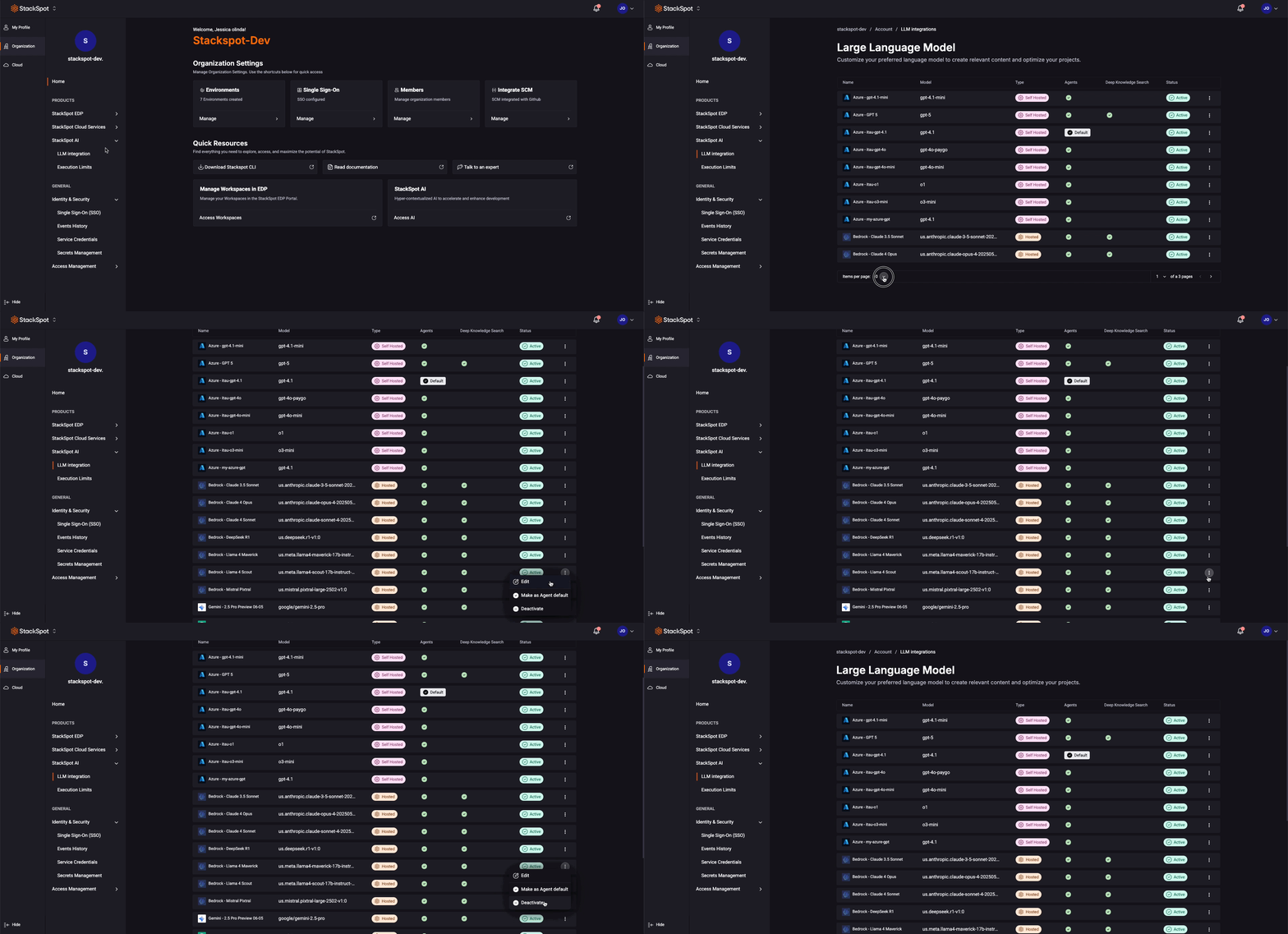
You can have more than one LLM active.
You cannot change the models for Deep Knowledge Source and Auto-complete on StackSpot-hosted models; the default model is 4o mini.
Deactivate an LLM
You can deactivate the LLM. Once deactivated, it cannot be used for any resources.
Follow the instructions:
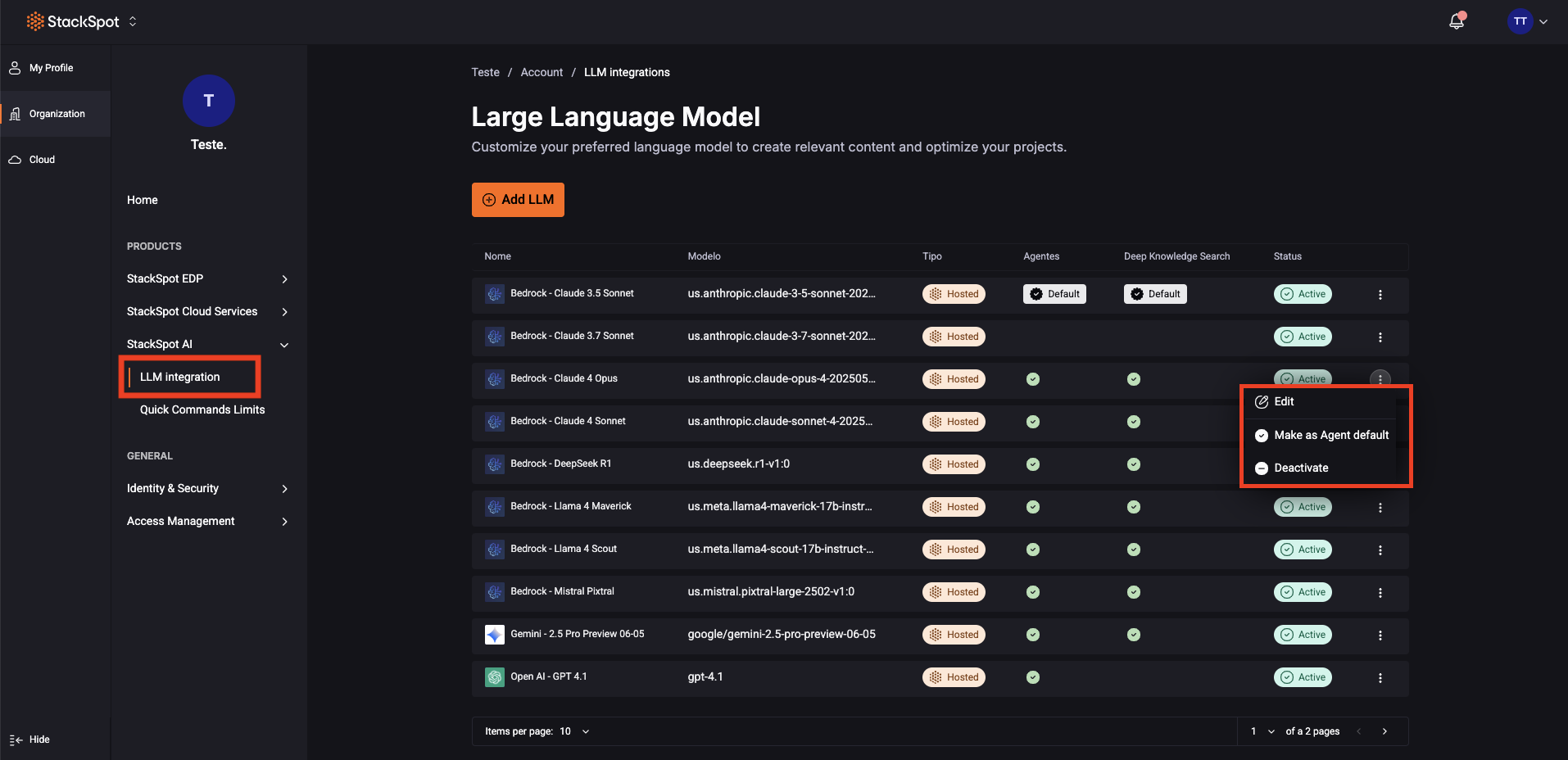
- Click on the ‘More Options‘ button;
- Then click ‘Deactivate‘.
- You cannot deactivate an LLM set as default. You must set a new one as default before deactivating.
Add a LLM
You can integrate your self-hosted Large Language Model into StackSpot AI. Select one and fill in the required fields for each provider: Azure, OpenAI, and Gemini.
Follow the steps for the selected model:
Azure OpenAI
- You must have an Azure OpenAI resource.
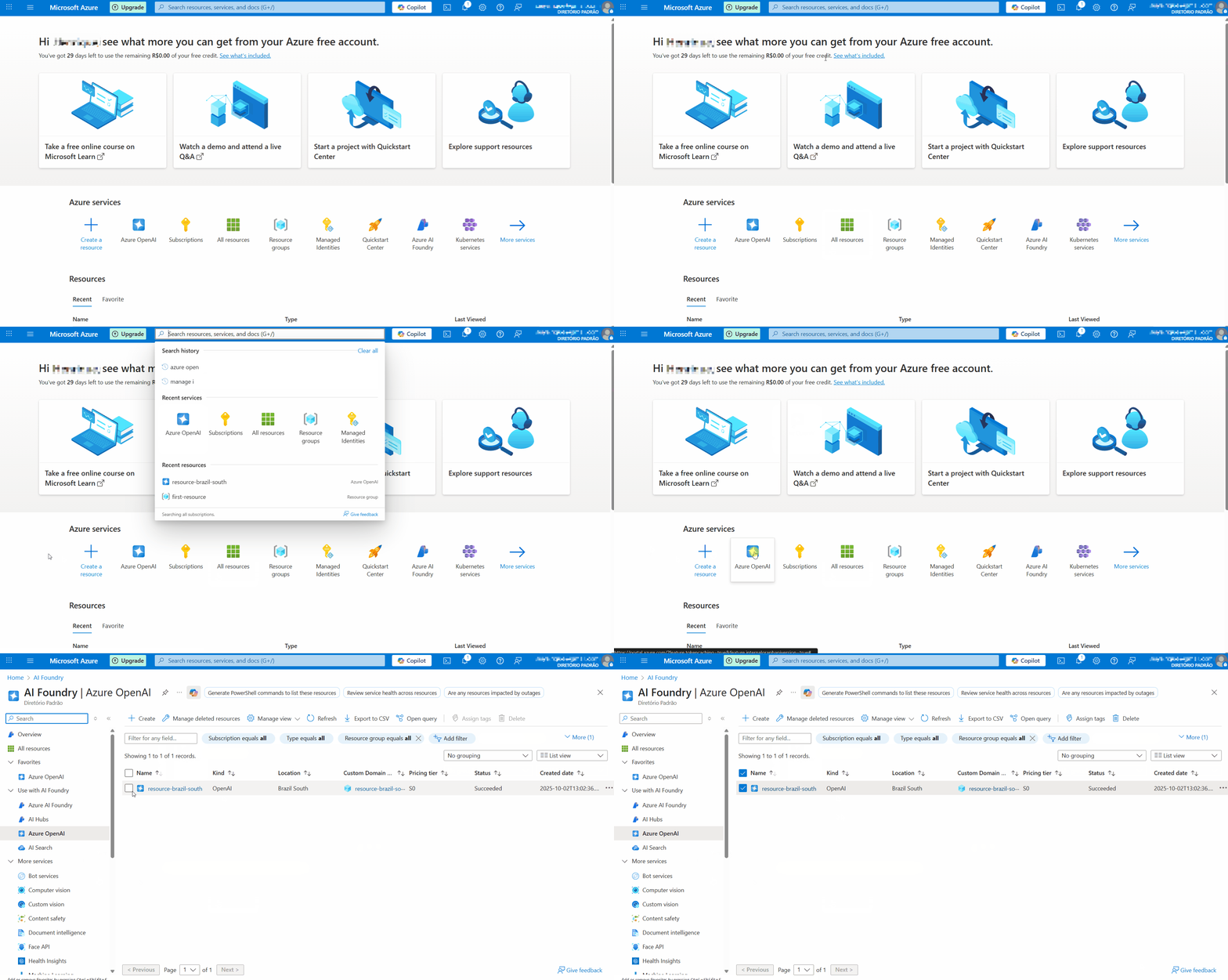
Step 1. Go to the Azure Portal;
Step 2. Use the search bar or navigate through the resource menu to find ‘Azure OpenAI‘;
Step 3: Select your Azure OpenAI resource;
Step 4. Access the keys and endpoints:
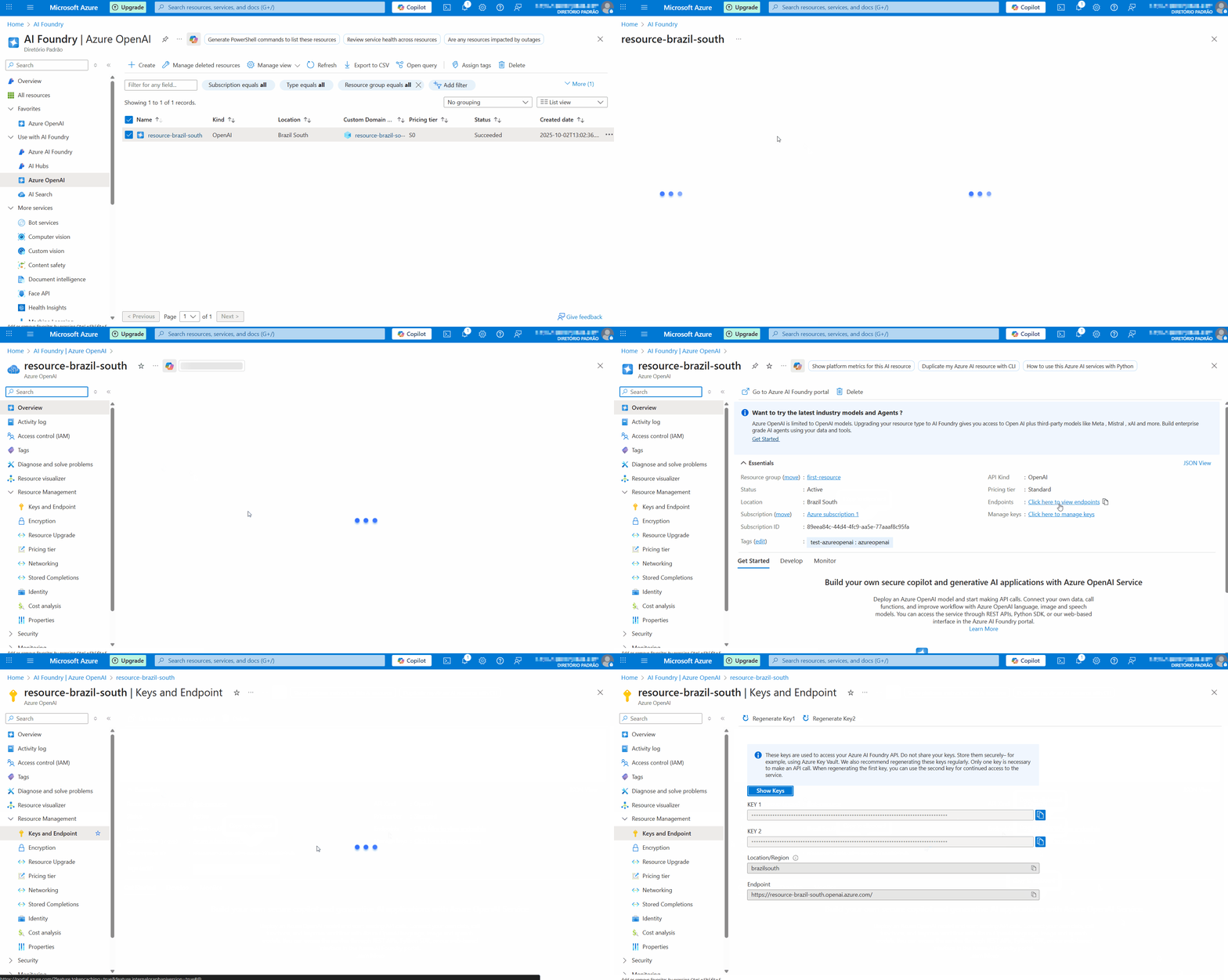
- Under the Endpoints section, click on ‘Click here to view endpoints‘.
To find the keys and endpoint, go to the Resource Management menu and click on ‘Keys and Endpoint‘.
On this page, you will see Key 1, Key 2, and the Endpoint. You can use either key for authentication.
Step 5. Now, log in to StackSpot AI Organization Portal;
Step 6. Go to ‘StackSpot AI > LLM Integration‘ and click the ‘Add LLM‘ button;
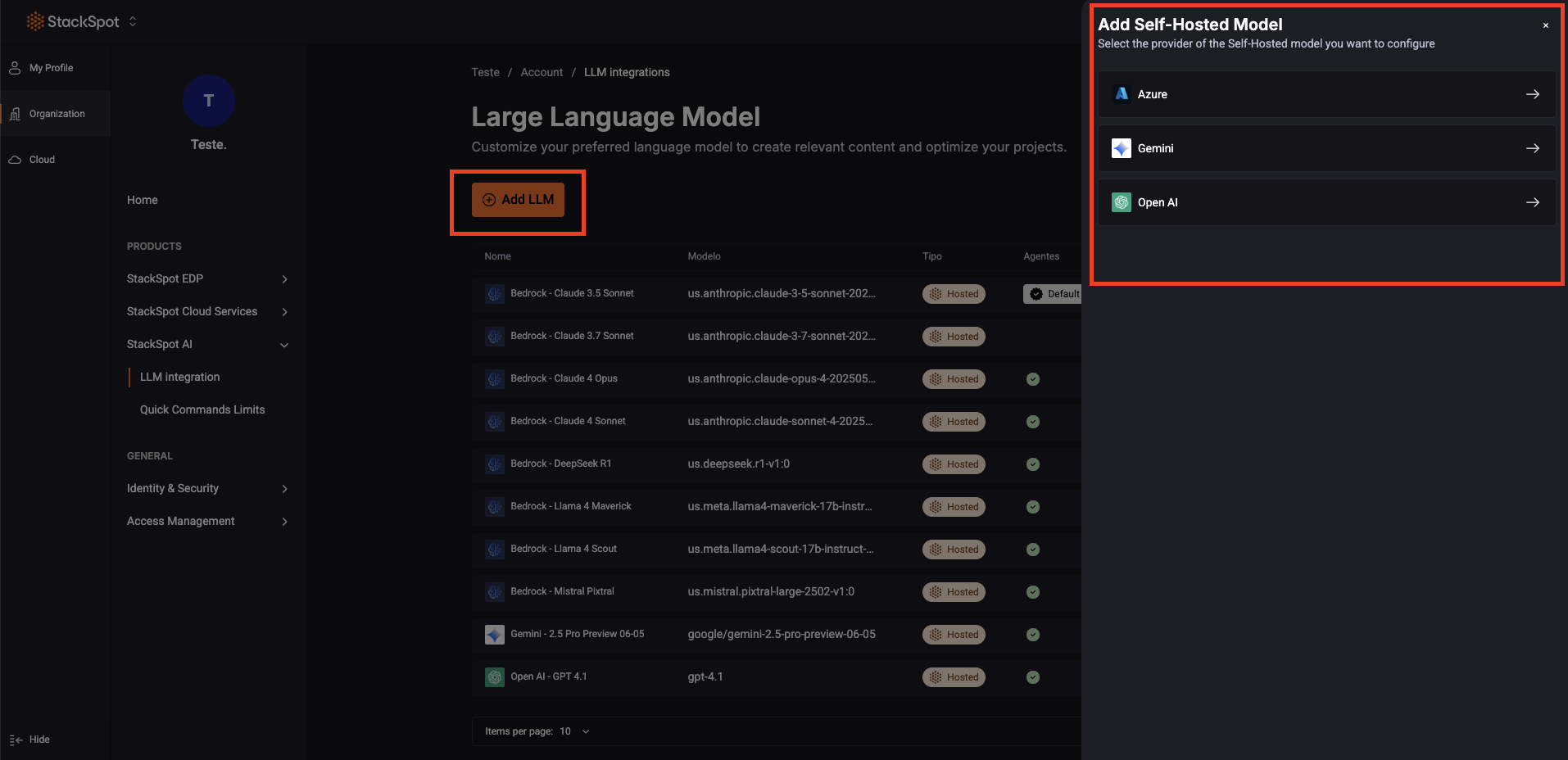
Step 7. Select Azure and fill out the required fields:
Model name: Add a name for your model.
- API Key: You must create a secret. Follow the instructions below:
- Click the lock icon and the ‘Register Secret’ button.
-
Create a Key/Value type and enter:
-
Secret Storage Location: Account
-
Type of credential: Key Value
-
Secret name:
example-azure -
Key:
api_key -
Value: Enter the value you previously saved from the Azure website.
The value looks like this:
XE4iNqxAT8z6EjuRuma0nBiF3BStfvqQwanDBo6VKsFDlrFkyaZZJQQJ99BJACZoyfiXJ3w3AAABACO -
- Click the ‘Create and Add‘ button to finish the process. Done, you have created a secret.
Now, continue to fill out:
-
API Version: Add the version of the API
-
Organization Key: Add your organization key.
-
Endpoint: You need to create another Secret with a Key/Value. Click the lock icon and the ‘Register Secret’ button.
- Add a new Key/Value pair:
- Key: example: resource-brazil-south
- Value:
https://{resource-name}.openai.azure.com
{resource-name}: It is the name of the resource you have or created in the Azure OpenAI.
- Add a new Key/Value pair:
-
Deployment Name: Add a name.
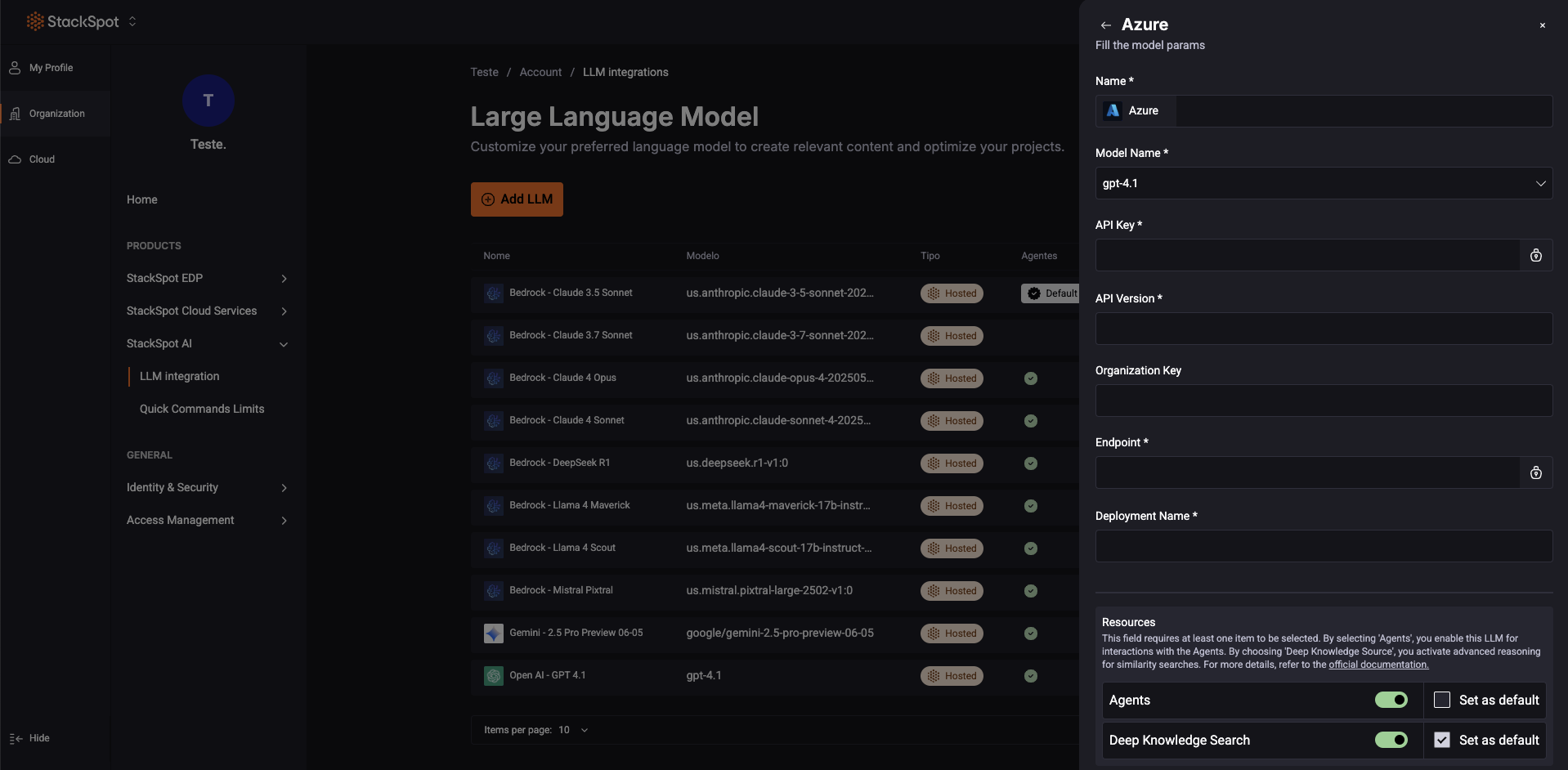
Step 7. Select Agent or Deep Knowledge Source in the Resources section.
You can set them as the default option.
Step 8. Click the ‘Save‘ button.
Gemini
- You must have a Google Cloud Platform (GCP) account.
Step 1. Access your GCP account;
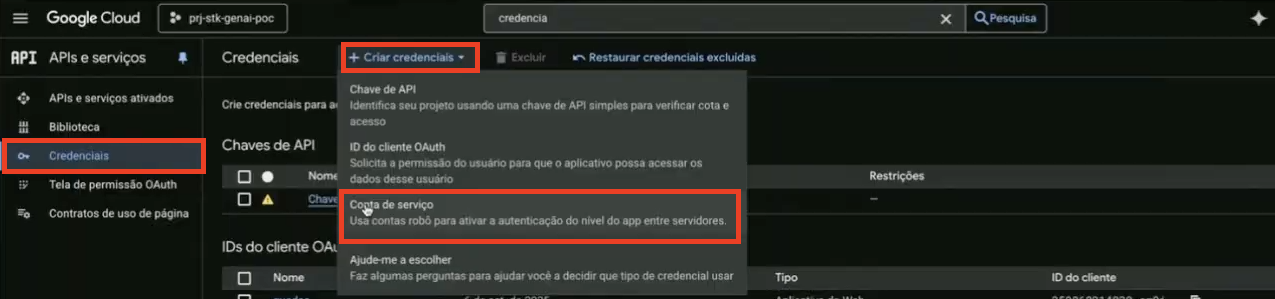
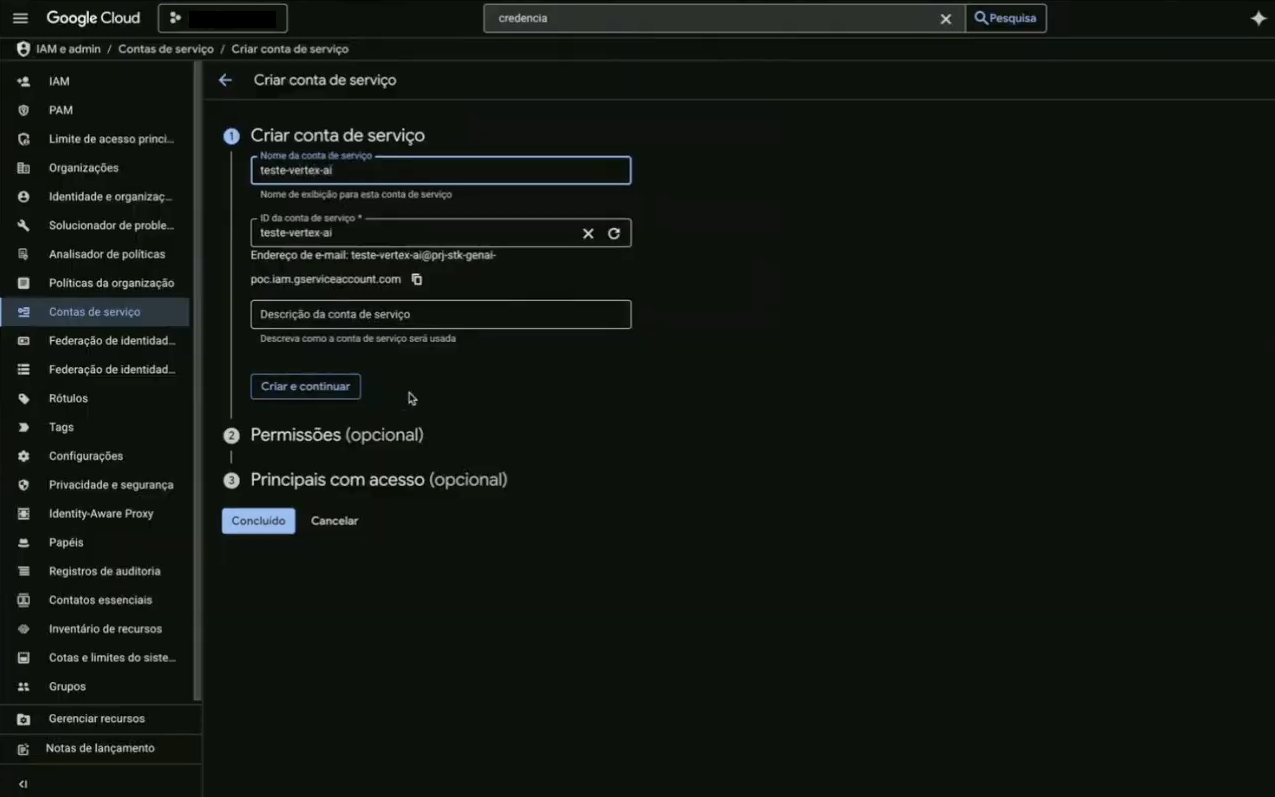
Step 2. Search for ‘Credentials‘ in the search bar. Click the ‘Create Credentials‘ button and select ‘Service Account‘. Fill out the fields.
- Provide a name and a description.
- The Permission field is optional. You can add Permissions only to the Vortex AI.
- Click the ‘Create and continue‘ button.
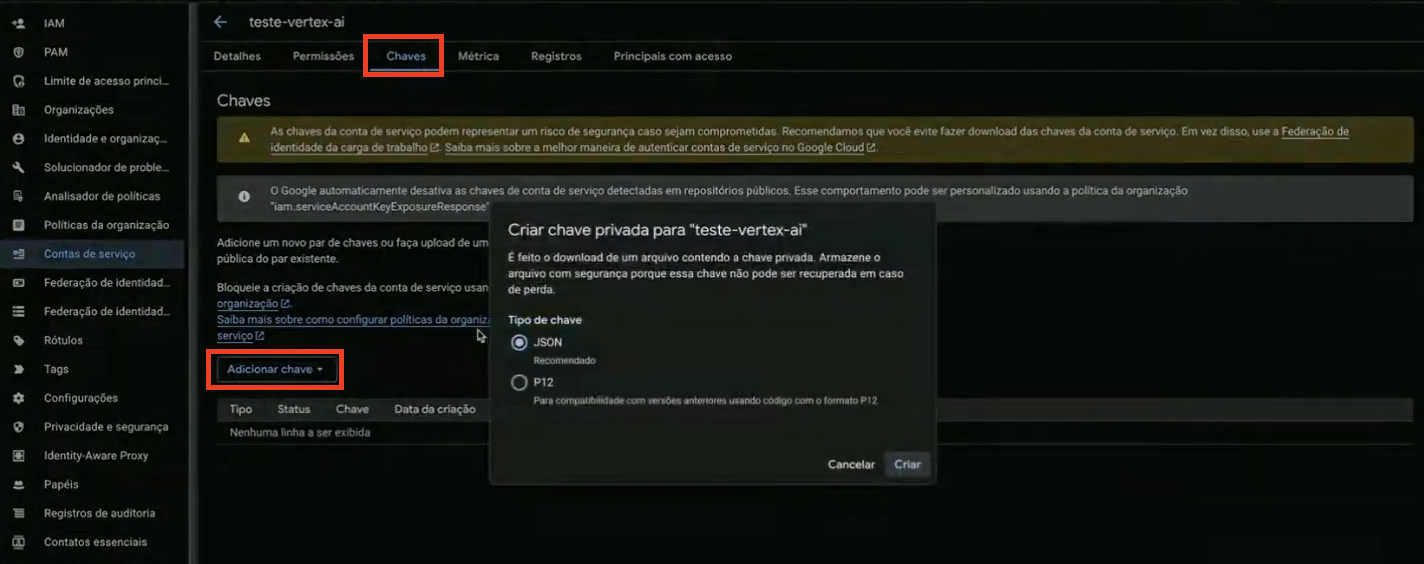
Step 3. Click the created Account, access the ‘Keys‘ tab, and click ‘Add a key‘. The private key must be JSON.
- Click the ‘Create‘ button. The key file will be automatically saved on your computer.
Step 4. Log in to the StackSpot AI Portal, the Organization section;
Step 5. Proceed to ‘StackSpot AI > LLM Integration’ Integration and click the ‘Add LLM’ button;
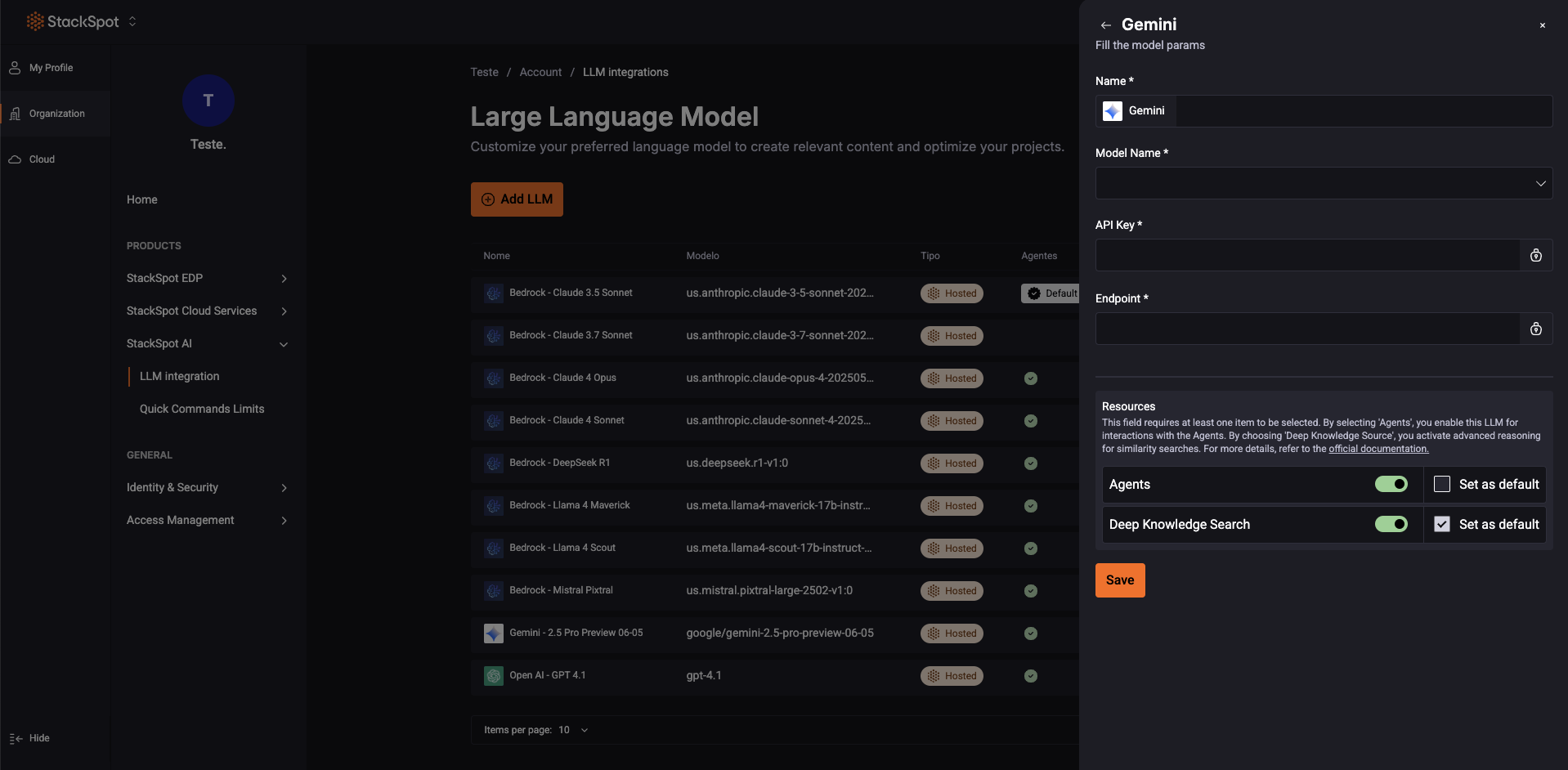
Step 6. Select Gemini and fill out the required fields:
- Name: Provide a name for the model.
You must create a secret. Follow the instructions below:
-
Click the lock icon and the ‘Register Secret‘ button. Fill out the fields:
- Secret Storage Location: Account
- Type of Credential: Key Value
- Secret Name:
example-self-hosted - Key:
api_key- Value: Enter the value you previously saved from the GCP website.
-
Create a new secret. Add a new Key/Value:
- Key:
url - Value:
https://{location}-aiplatform.googleapis.com/v1/projects/{yourproject_id}/locations/{location}/endpoints/openapi
yourproject_id: It is the name of your project. - Key:
Click the ‘Create and Add‘ button to finish the process. Done, you have created a secret.
Now, continue to fill out:
- API Key: Click on the Secret you created and add the first Key/Value pair. In this example, it is
example-self-hosted. - Endpoint: Click on the Secret and add the second Key/Value pair. In this example, it is
url.
Step 7. Select Agent or Deep Knowledge Source in the Resources section.
You can set them as the default option.
Step 8. Click the ‘Save‘ button.
Open AI
- To proceed, you must have an OpenAI account.
Step 1. Log in to your OpenAI account;
Step 2. Click on ‘Default Project’, then select ‘Create Project’. Enter a name for your Organization's project;
Step 3. Navigate to the ‘Manage Projects’ section and click the name of your newly created project. In the sidebar menu, select ‘API Keys’, then click ‘Create New Secret Key’;
- Click Service account and add a name for the service key. For example
OPENAI_APIKEY. - Add the permissions.
- Choose a project and click ‘Create secret key‘. Copy and save your key, you won't be able to see it again. You will need it later.
Step 4. In your OpenAI account, go to the ‘Settings’ menu next to your profile.
Locate and copy your Organization ID. Save it, you will need it later;
Step 5. Log in to the StackSpot AI Portal, the Organization section;
Step 6. Go to ‘StackSpot AI > LLM Integration‘ and click the ‘Add LLM‘ button;
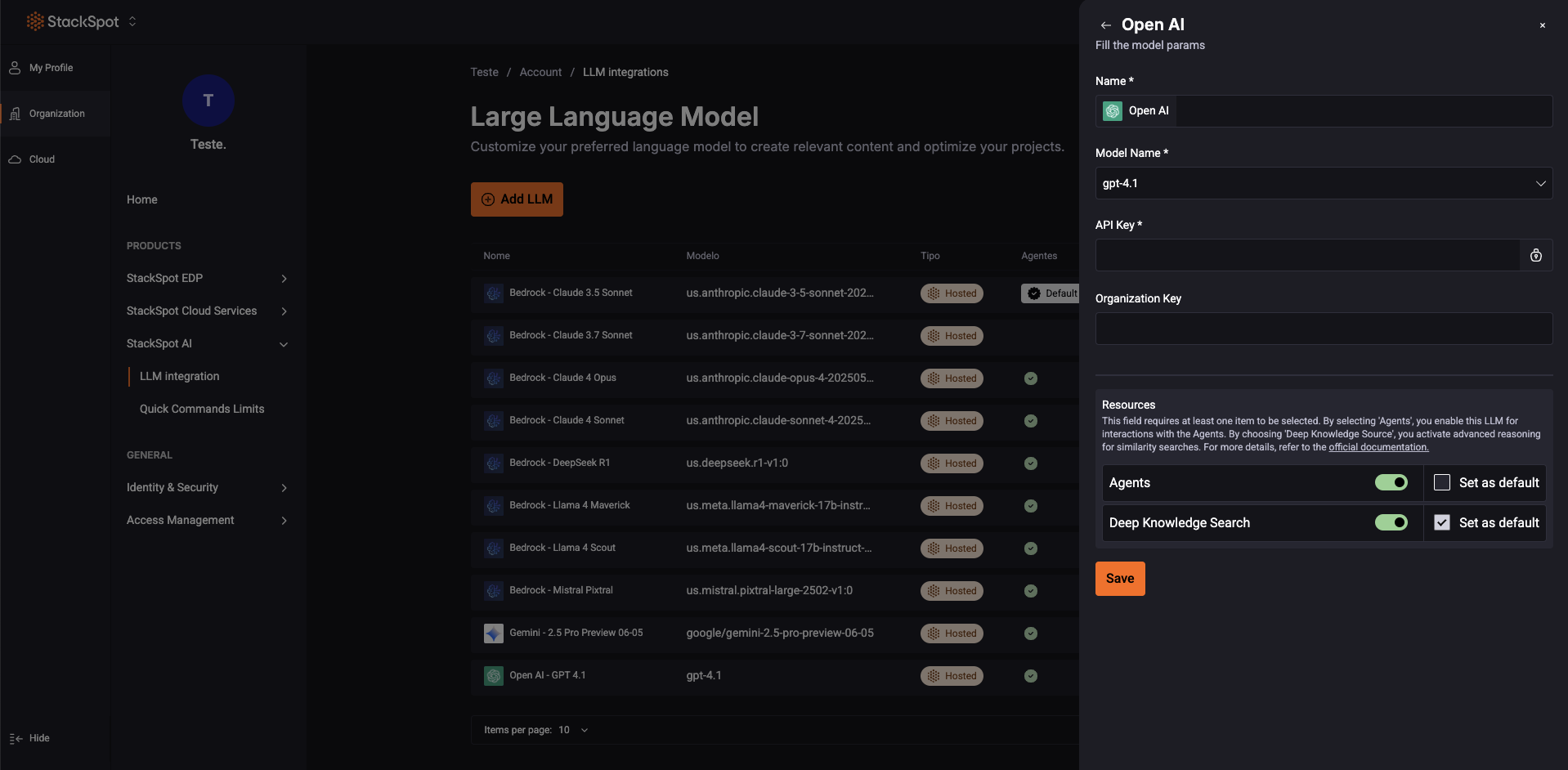
Step 7: Choose OpenAI and fill out the required fields:
- API Key: You must create a secret. Follow the instructions below:
-
Click the lock icon and the ‘Register Secret‘ button. Fill out the fields:
- Secret Storage Location: Account
- Type of Credential: Key Value
- Secret Name: Add a name for your secret. Example:
OPENAI_APIKEY.
- On Secret Key:
- Key: You can enter any name you prefer.
- Value: Add the value you saved from the OpenAI website earlier.
Click the ‘Create and Add‘ button. Done, you have created a secret.
Now, continue to fill out:
- Organization Key: Add the Organization key you copied earlier.
- Endpoint: This is an optional field. Use this field only if you have a self-hosted large language model (LLM) to access through a custom URL. If you use a standard OpenAI model, you do not need to fill out this field.
- Example:
https://{companylink}/v1/chat/completions - Add on StackSpot:
http://{companylink}
- Example:
Step 8. Select Agent or Deep Knowledge Source in the Resources section.
You can set them as the default option.
Click the ‘Save‘ button to finish the process.
Test your LLM
Create an Agent and check the name of the LLM you set up. This will help you confirm that it is working properly.