SSO Configuration
You can configure the integration with your organization's identity provider (IDP). It is required for any user logging in via your organization's
You can configure multiple SSO methods, however, you can only keep one active.
Prerequisite
To proceed, you must have Account Holder or Admin permissions.
Set Up SSO (Single Sign-On)
Step 1. Log in to the StackSpot Account Portal;
Step 2. Click on the 'Organization' option;
Step 3. In the Account Portal, click on 'Identity and Security' and then click the 'Single Sign-On (SSO)' button;
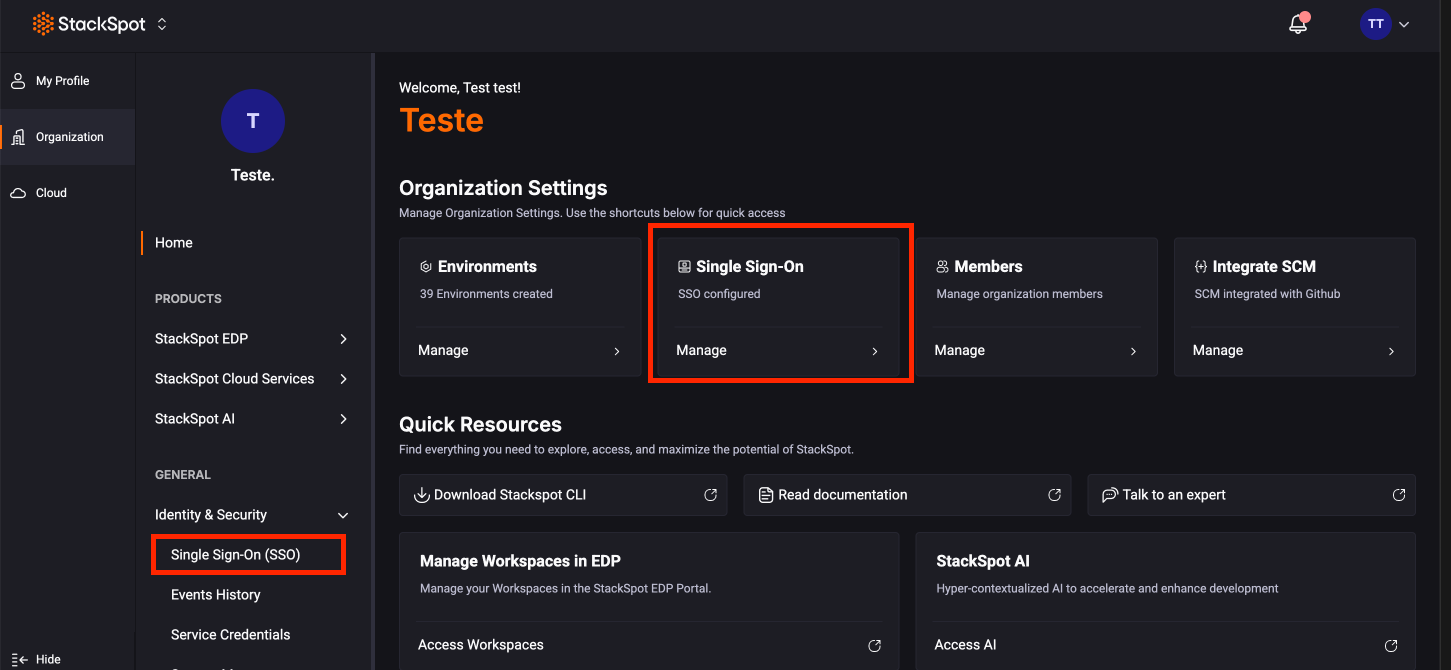
Step 4. Click 'Set Up SSO' and then on the button;
Step 5. Choose how you want to configure your SSO. There are two authentication methods available in StackSpot:
- SAML V2.0
- OpenID Connect V1.0
Select one, click 'Next', and follow the steps below for each method.
Set Up SSO via SAML V2.0
Security Assertion Markup Language (SAML) is an open standard for exchanging authentication and authorization data between parties. For more information about this method, see the Oracle documentation.
Follow these steps to configure SSO via SAML V2.0:
Step 1. You can configure multiple SSO methods. First, name the one you are currently setting up by entering the name in the 'SSO Name' field;
Step 2. Upload an XML file from your IDP (SAML entity descriptor) to set up the integration. Click the 'Select File' button to upload, then click 'Upload File';
The XML file in Step 2 helps automatically fill in some configuration fields.
Step 3. After uploading, click the 'Next' button and review the information:
- Redirect URL (optional);
- Single Sign-On Service URL: SAML endpoint that initiates the authentication process.
- Entity ID;
- Configuration certificate;
- Single Logout Service URL (optional): SAML logout endpoint.
Check the information and click 'Finish'.
After configuring an SSO (Single Sign-On), you cannot edit the information. To make changes, you must deactivate or remove the SSO and set it up again from scratch with the updated data.
Now, to complete the Single Sign-On setup via SAML 2.0 and activate it, you need to Configure SAML Assertion Attributes.
Configure SAML Assertion Attributes
After setting up the SSO method via SAML (Security Assertion Markup Language), you must configure its Attributes. These indicate where StackSpot can retrieve user information during login.
Follow these steps to configure:
Step 1. Still in the Account Portal, click on 'Organization';
Step 2. Click on 'Identity and Security', select 'Single Sign-On (SSO)', and select the SSO for which you want to configure the Attributes;
Step 3. Click on the 'Attributes' tab, which is right after the 'Identity Provider Information' tab;
Step 4. Click the 'Edit' button and fill in the following fields:
- Email;
- First Name;
- Last Name.
Click 'Save'.
Set Up SSO via OpenID Connect V1.0
OpenID Connect (OIDC) is a protocol for identity authentication. For more information about this method, see the Microsoft documentation. Follow these steps to configure:
Step 1. Upload a JSON file with the metadata from your OpenID Connect identity provider. Click the 'Select File' button to upload, then click 'Upload File'. The information will be filled in automatically.
Then, click 'Next'.
Step 2. Review the information displayed in the form and fill in the three required fields: SSO Name, Client ID, and Client Secret.
See all the form fields below:
- SSO Name: You can configure multiple SSO methods. Name the one you are currently setting up.
- Redirect URL;
- Authorization URL: The authorization endpoint required by the OIDC protocol.
- Token URL: The token endpoint required by the OIDC protocol.
- User Info URL;
- Issuer
- JWKS URL;
- Token Revocation URL;
- End Session URL (optional);
- Client ID: Your client ID registered with the Identity Provider;
- Client Secret: Your client secret registered with the Identity Provider.
Step 3. Check the information and click 'Next'.
Step 4. Click 'Create Group Mapping' to associate the permission groups from your external identity provider with the internal groups in StackSpot. This makes user access management easier.
If you prefer, you can click 'Next' and configure group mapping later. Configuration instructions are in the Group Mapping section.
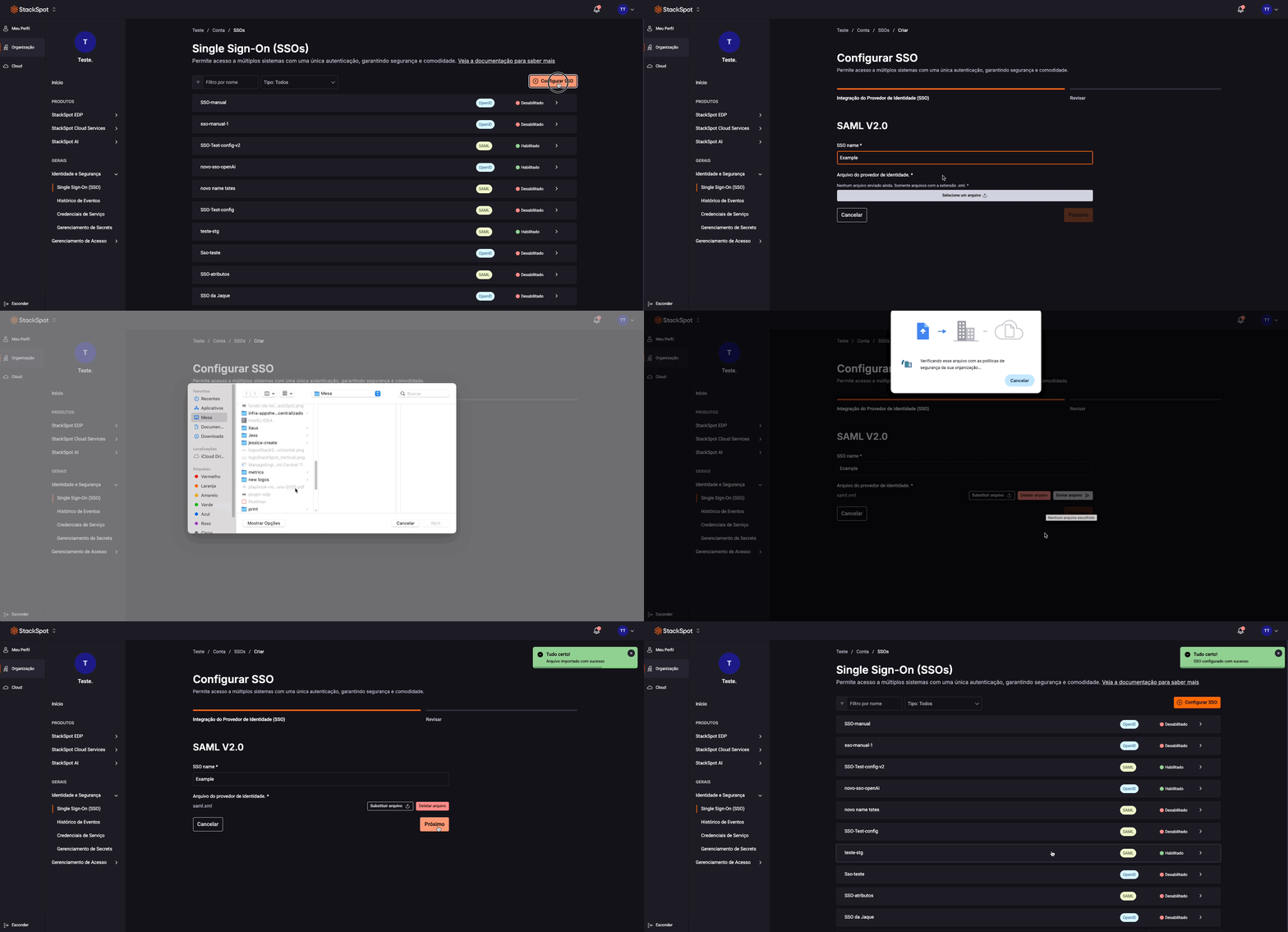
You cannot edit SSO (Single Sign-On) information after configuration. You need to deactivate or remove the SSO and set it up again from scratch with the changes you want.
How to Activate or Deactivate an SSO (Single Sign-On) Method
You can configure multiple SSO methods, but only one can be active at a time. To activate an SSO, you must deactivate the other.
Prerequisites
- If using SSO via SAML, you must have configured your Attributes.
Follow these steps:
Step 1. In the Account Portal, click on 'Identity and Security' and select 'Single Sign-On (SSO)';
Step 2. Select the SSO you want to activate or deactivate;
Step 3. Click on the 'Settings' tab;
Step 4. Now you have two options:
- Enable the toggle next to 'SSO Status' to activate the SSO;
- Disable the toggle next to 'SSO Status' to deactivate the SSO.
Next Step
- After configuring SSO, you need to Set Up Group Mapping.