Quick Commands Limits
StackSpot AI enables Account Holders to customize the execution limits for Quick Commands (QC) and Agents API associated with Personal Access Tokens (PAT) and Service Credentials. This helps your Organization manage the usage of Quick Commands and Agents API effectively, preventing excessive resource consumption and ensuring that your operations run smoothly without interruptions caused by default limits.
You can control and optimize resource usage based on your Organization's needs. To add a limit to the QC/Agents API execution, follow the steps below:
Prerequisites
- You must be an Account Holder.
If you are not an Account Holder, you can customize your Quick Command limits and Agents API limit if permitted.
- The group linked to the Service Credential must have permission to create Quick Commands.
Step 1. Access your Account Portal;
Step 2. Select ’AI’ from the menu, then click ’Quick Command Limits’;
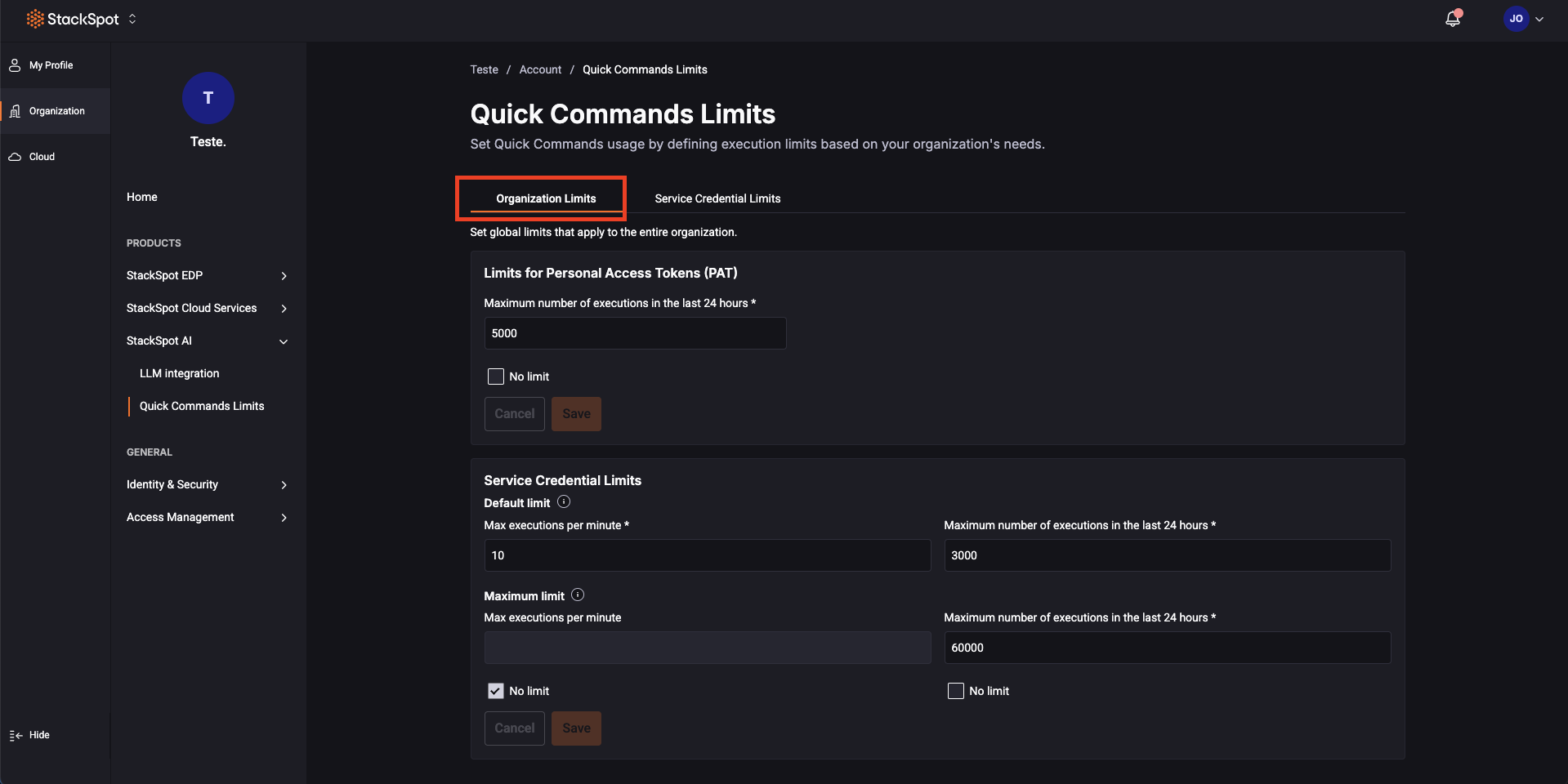
Step 3. On the ’Organization Limits’ tab, choose the limits for your Organization;
Step 4. Choose a limit for Personal Access Token (PAT). Add a number for the options:
- Execution limit in 24 hours: Specify the desired amount.
- No limit: Select this option for no limit on your Organization.
Click the ’Save’ button.
Step 5. You can choose a limit for Service Credential.
Default limit: This limit is automatically set when a new Service Credential is created. See the options:
- Add a maximum executions per minute.
- Add executions limit in 24 hours.
- No limit: Select this option if you do not wish to set a limit.
Maximum limit: This is the maximum limit allowed for a Service Credential. Users cannot customize a limit beyond this value.
- Add a maximum executions per minute.
- Add execution limit in 24 hours.
Click the ’Save’ button.
Customize your Services Credential execution Limit
Your Organization's configuration defines the execution limits for your Service Credential (Quick Commands and Agents API). If permitted, you can customize them, follow these steps to do it.
If you can't change the limits or don't see all the options mentioned in this guide, your Organization has already set a limit for your Service Credential, and you cannot change it.
The group linked to the Service Credential must have permission to create Quick Commands.
Step 1. Access your Account Portal;
Step 2. Go to ’AI’, then click ’Quick Command Limits’;
Step 3. Click the 'Service Credential Limits' tab. Locate your Service Credential and click the ’Configure’ button;
You can select multiple Service Credentials to configure at the same time.
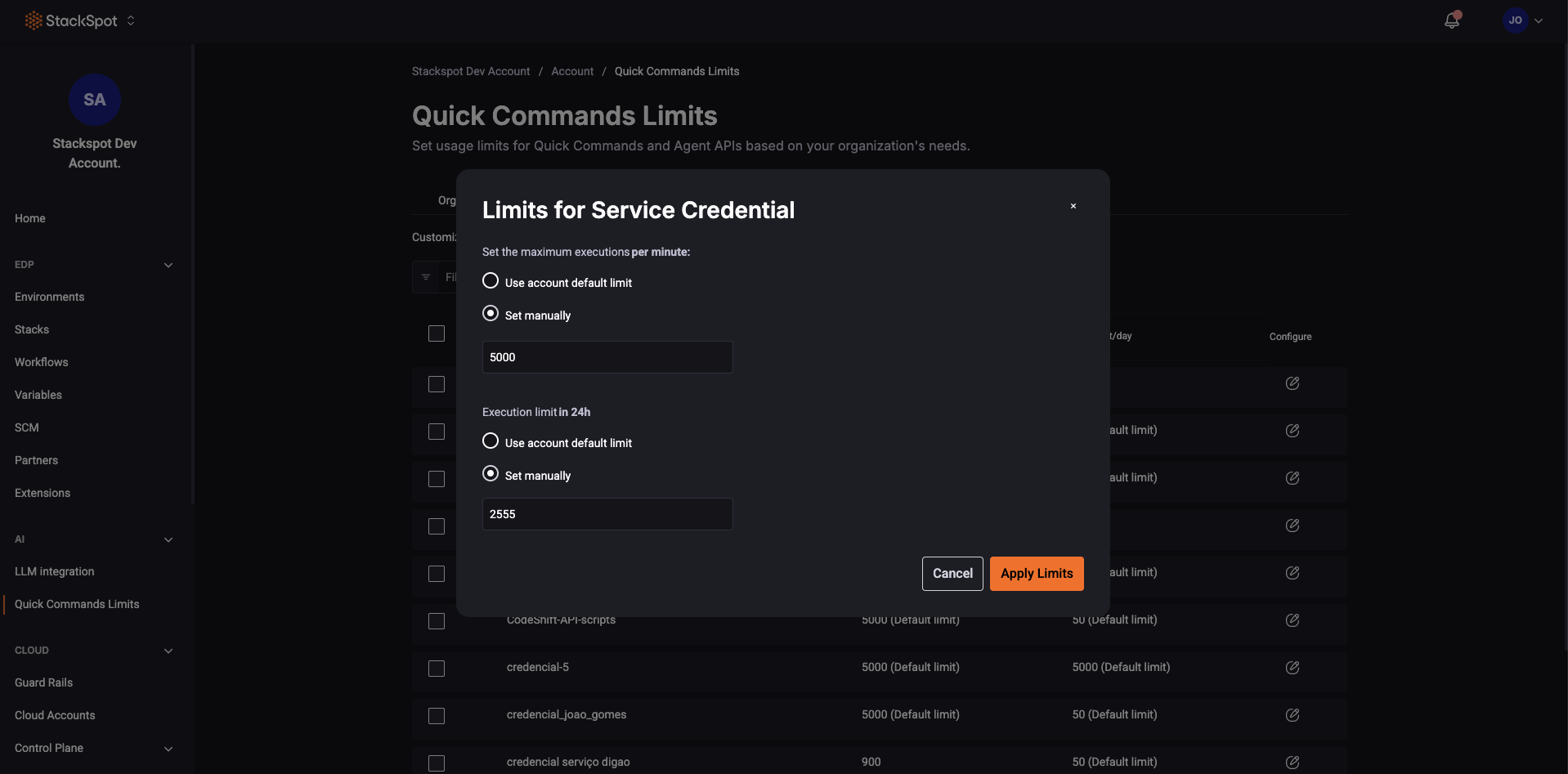
Step 4. You can view the following options based on your Organization settings:
-
Set the maximum executions per minute: Choose the option available for you:
- Use the Account default limit.
- Set manually. In this case, add a number.
-
Set the execution limit in 24h: Choose the option available for you:
- Use the Account default limit.
- Set manually. In this case, add a number.
Click the ’Apply limits’ button.
Done, you've customized the limits.