Create MCP Toolkit
MCP Toolkit temporarily unavailable
The MCP Toolkit is currently unavailable. We are working to restore access as soon as possible. Please check this page regularly for updates.
What is an MCP?
The Model Context Protocol (MCP) is a protocol created by Anthropic to connect Tools and services to an AI Agent. It enables AI to interact with data and systems in real time, such as creating a Pull Request on GitHub or accessing client information.
Key MCP Concepts
- MCP Protocol: It is an open standard that allows AI Agents to easily connect to different data sources and external services—such as APIs and databases—in a secure and standardized way.
- MCP Client: The part of the application responsible for handling communication between the AI Agent and external services. It requests data or functionalities from the MCP server, turning the agent’s needs into concrete calls and responses.
- MCP Server: The external service that provides data or executes functions for the MCP client, responding to the requests made by the AI agent.
How the MCP Toolkit works in StackSpot AI
With the StackSpot AI MCP Toolkit, you can connect to a public MCP server so your Agents can access specific Tools and resources to achieve their goals more efficiently.
The MCP Toolkit provides all available Tools from the registered service to the Agent, integrating and delivering the exact context for the LLM model to know which functionalities it can use.
Registering an MCP Toolkit
Prerequisite
- You need an active account and access credentials for the MCP service you want to register in the toolkit.
To register an MCP toolkit, follow the steps below:
Step 1. Access the StackSpot AI Portal;
Step 2. In the 'Toolkits' section, click the 'Create Toolkit' button and select the MCP option;
Step 3. Fill in the following fields:
- Logo: Add a logo for your toolkit.
- MCP Toolkit Name: Enter the name of your toolkit.
- Description: Explain what your toolkit does.
- Service URL: Enter the MCP server URL (only HTTP/HTTPS connections are accepted).
Step 4. Authenticate yourself so the MCP connection works correctly. Follow one of the steps below:
Choosing an Existing Secret
- In the Authentication section, click the Secret button;
- Choose Organization or Personal as the Secret Storage Location;
- Select the Credential Type (API Key, Client Credentials, or Key/Value), then choose the name of the Secret.
Create a Secret
Step 1. Add the Secret Storage Location:
- Choose Organization for a company-wide Secret;
- Personal for an individual-use Secret.
Step 2. Choose the Credential Type and add the following information:
-
API Key
- Add a name for the Secret;
- Add the header name and value;
- Add an expiration date (optional).
-
Client Credentials (OAuth)
- Add the URL;
- Add the Client ID;
- Add the Client Secret;
- Add the Scopes (optional).
Using Client Credentials allows secure internal authentication at the endpoint. When you select the Secret, you will receive both the authorization and access tokens.
- Key/Value
- Add a name;
- Add the key and the value;
- Add an expiration date (optional).
Done! You have completed the authentication.
Step 5. Click the 'Create MCP' button. Your tools are now available to use.
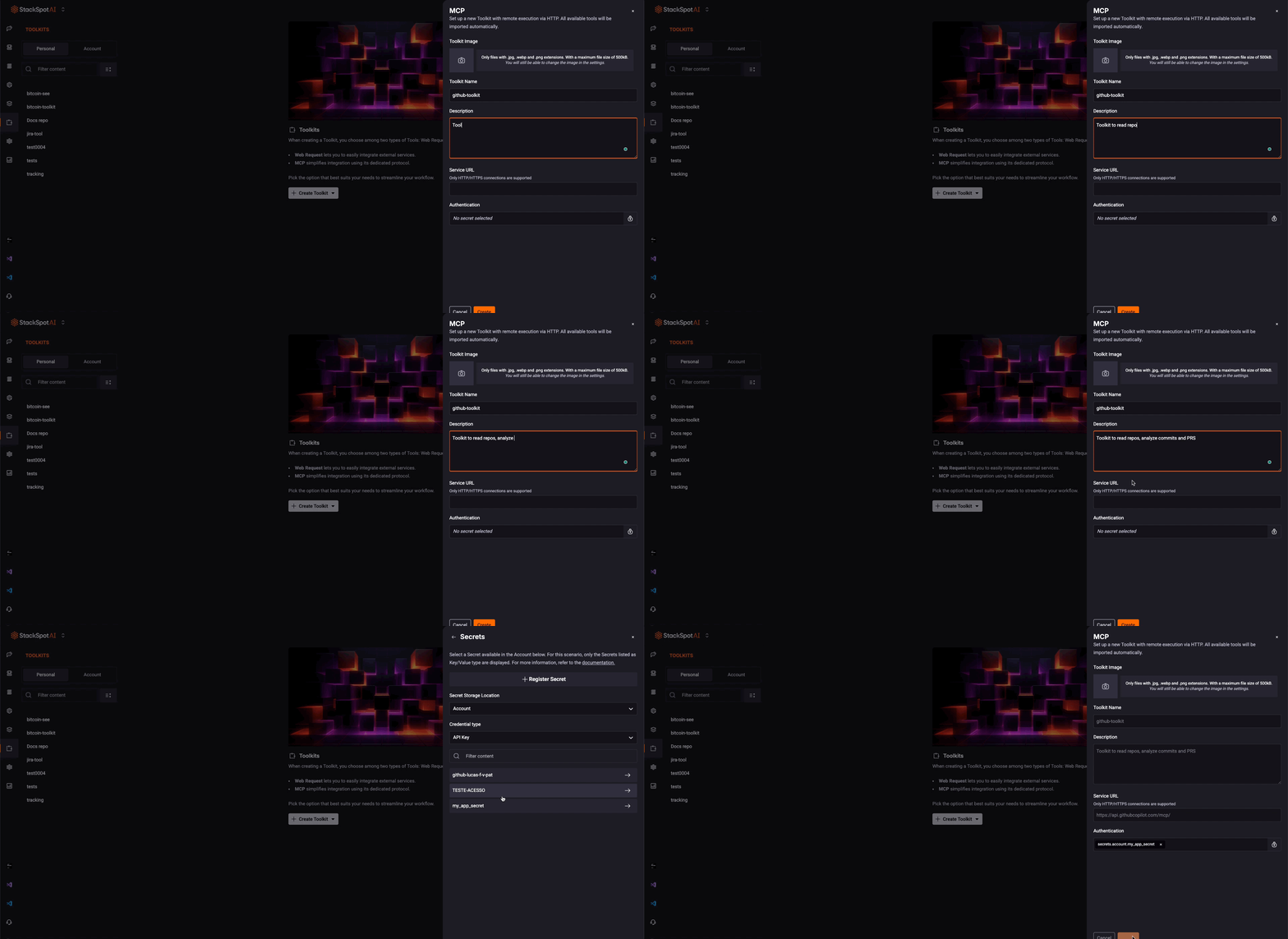
GitHub MCP Example
See below for an example of a GitHub MCP toolkit:
Step 1. In the StackSpot AI Portal, access the 'Toolkits' section. Click the 'Create Toolkit' button and select the MCP option;
Step 2. Fill in the following fields:
- MCP Toolkit Name: GitHub toolkit
- Description: Toolkit to read repositories, analyze commits, and pull requests.
- Service URL: https://api.githubcopilot.com/mcp/
Step 4. Perform the authentication;
Step 5. Click the 'Create MCP' button to finish the registration;
Step 6. Create an Agent and add one of the available Tools from your MCP toolkit to that Agent.