Create Quick Command with Parallelism
What is parallelism in Remote Quick Command?
Parallelism in Remote Quick Command (RQC) lets you run multiple steps at the same time, instead of one after the other. This is useful for tasks that don’t depend on each other and can be done faster together.
For example, if you have three independent tasks, you can start them all at once with parallelism. In a normal (sequential) flow, each step would wait for the previous one to finish.
Example use case
Suppose you’re analyzing a Pull Request (PR) with a Quick Command. Using parallelism, you can:
- Run a security check,
- Check code clarity,
- Evaluate performance,
Parallelism rules
- Parallelism is only available for Remote Quick Commands (not supported in the IDE).
- You can have up to three parallel blocks in a single RQC.
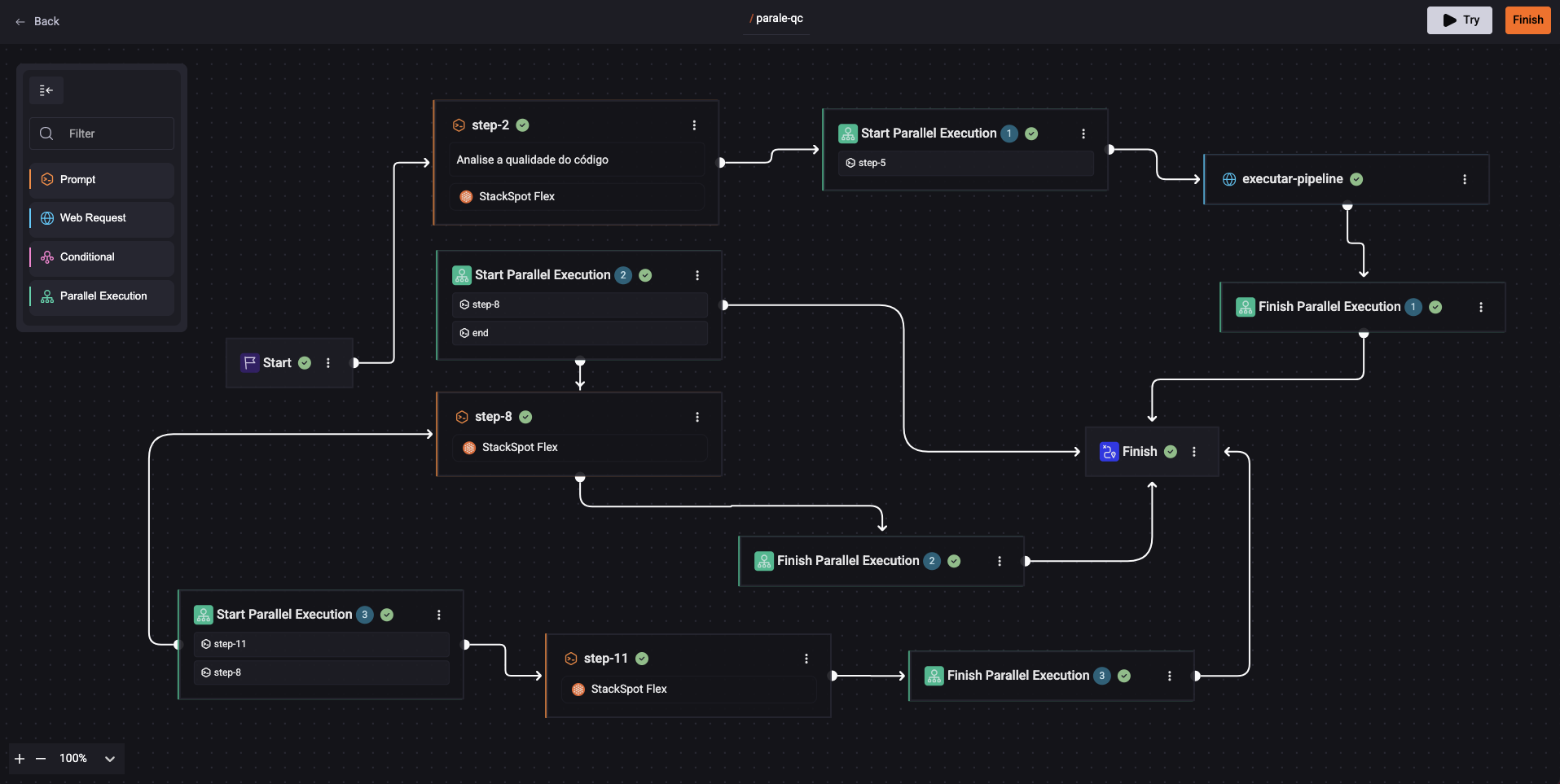
- You cannot nest one parallel block inside another.
- Each parallel block can have 2 to 5 branches starting from the "Start Parallel" step.
- Every branch that starts in a parallel block must end at the matching "End Parallel" step (same number).
See the example below:
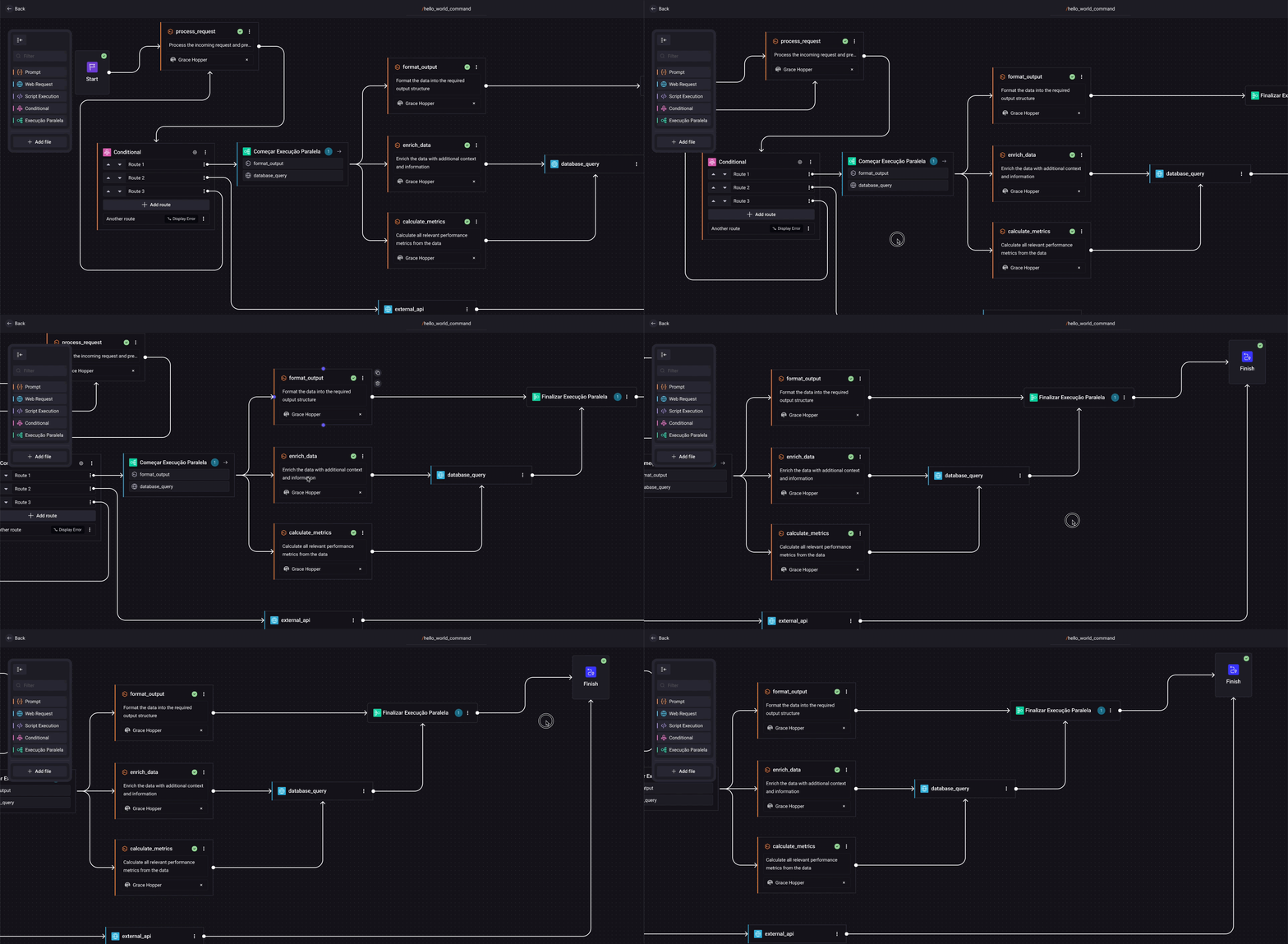
Tips on how parallelism works
Here are some tips for using parallelism:
- Inside each parallel block, you can add steps in sequence if needed.
- You can add conditional steps inside a parallel block, but each must connect to the matching "End Parallel" step.
- If you use parallelism, the context sharing between steps feature is automatically disabled. This means steps in parallel won't share conversation history, but you can still access previous responses with Jinja.
- The Try button in the portal does not work with parallelism. To test your flow, use the API directly.
How to create a Remote Quick Command with parallelism
Follow these steps to set up parallelism in your RQC:
Step 1. Go to the StackSpot AI portal;
Step 2. Click ‘Create > Quick Command’;
Step 3. Choose the Remote option and fill in:
- Quick Command Name
- Execution Command
- Description
Then, click ‘Next’;
Step 4. Select ‘Blank’;
Step 5. Drag in the ‘Parallel’ step. The system creates two green boxes: ‘Start Parallel Execution’ and ‘End Parallel Execution’ (with the same number). Add a prompt box to, for example, validate code;
Step 6. Drag in a Web Request box for something like a security check. Connect this box to ‘End Parallel Execution’;
Step 7. Connect the ‘End Parallel Execution’ box to the ‘End’ box to finish your flow.
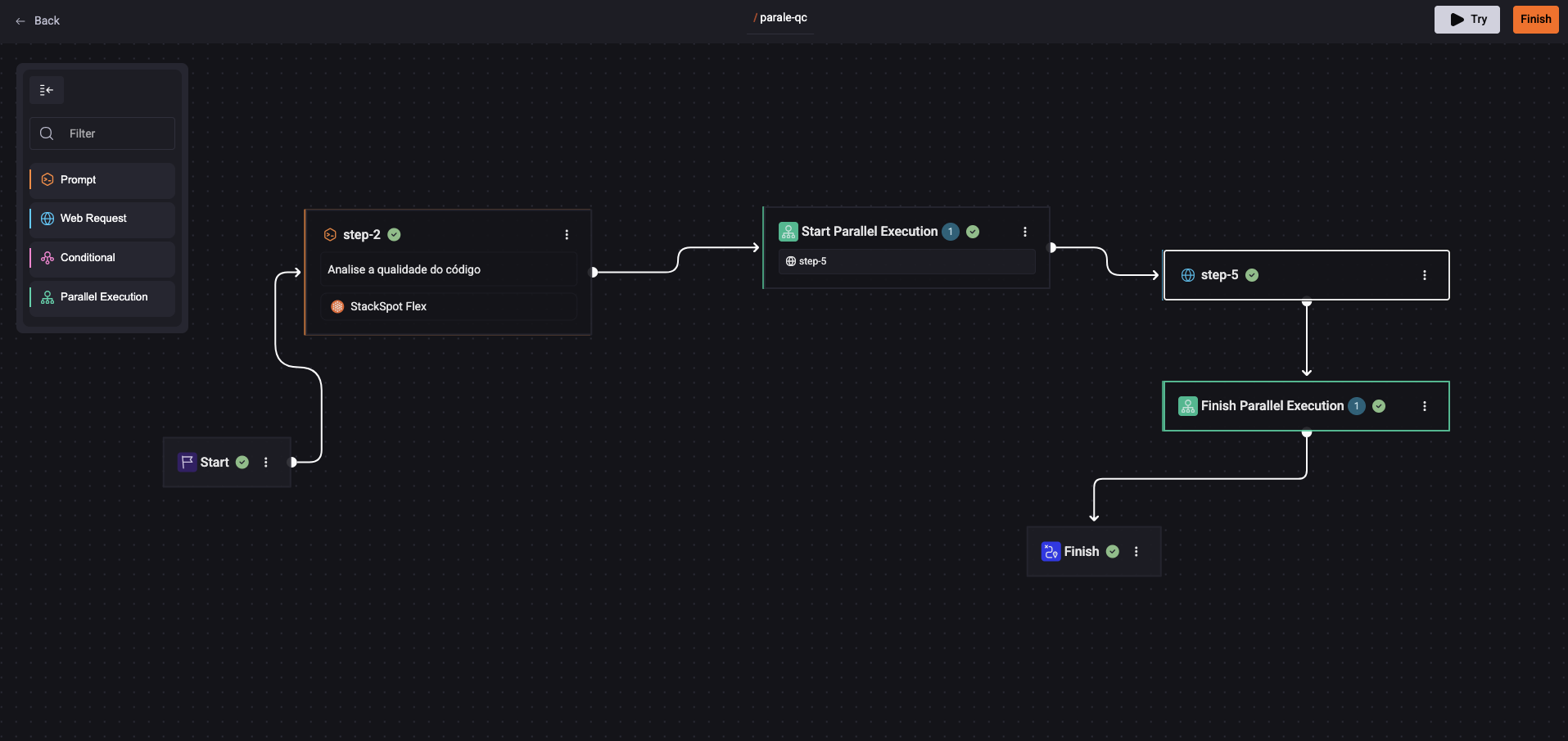
You’ve now created a Quick Command with parallel execution. Run it as usual.
All steps that start at ‘Start Parallel’ must end at the ‘End Parallel’ with the same number.
-
What happens if a step fails?
If an LLM fails in one of the parallel branches, the entire Remote Quick Command will stop—unless you enable the 'Continue on error' flag. -
Can I see the result of each step in the callback?
Yes! You can track each step’s result in real time with its step slug. -
How do I see what was executed in parallel?
Execution info updates in real time:- When a step starts, its status is running.
- When it ends, it shows as completed with the response data.
- If a step fails, the status is failure and shows the error.
- Each step also shows its execution time.