Secrets on Remote Quick Commands
You can use secrets when creating/executing your Remote Quick Command (Web Request). This feature allows for seamless integration of secrets for secure authentication and data management during QC execution.
If you don’t use a Secret for 30 days, it will automatically become inactive.
You can choose an existing secret or create a new one.
1. Create a Secret
In the Remote Quick Command (Web Request), in the 'Headers' section, click the Secret button;
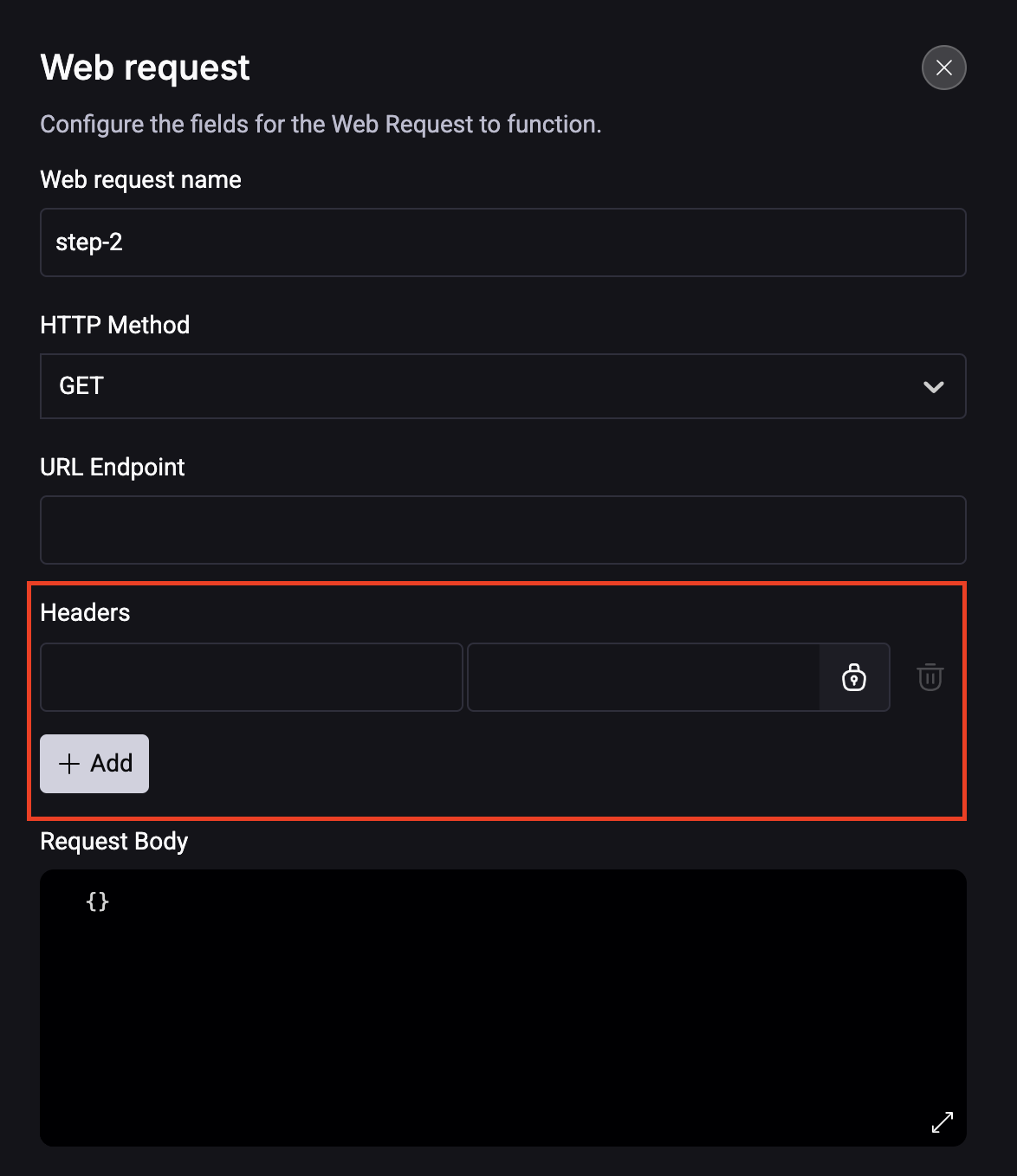
Step 1. Add Secret Storage Location:
- Account: For your company's secret (available only to Account Holders).
- Personal: This is personal and meant for your own use.
Step 2. Choose a Credential Type and add the following information:
-
API Key Used to authenticate client application requests to APIs. Fill out the fields:
- Add a Secret name.
- Add a header name and value.
- Add an expiration date. It is optional.
-
Client Credentials (OAuth) Commonly used for server-to-server communication; a client application must authenticate using client credentials. Fill out the fields:
- Add the URL.
- Add the Client ID.
- Add the Client secret.
- Add Scopes (Optional).
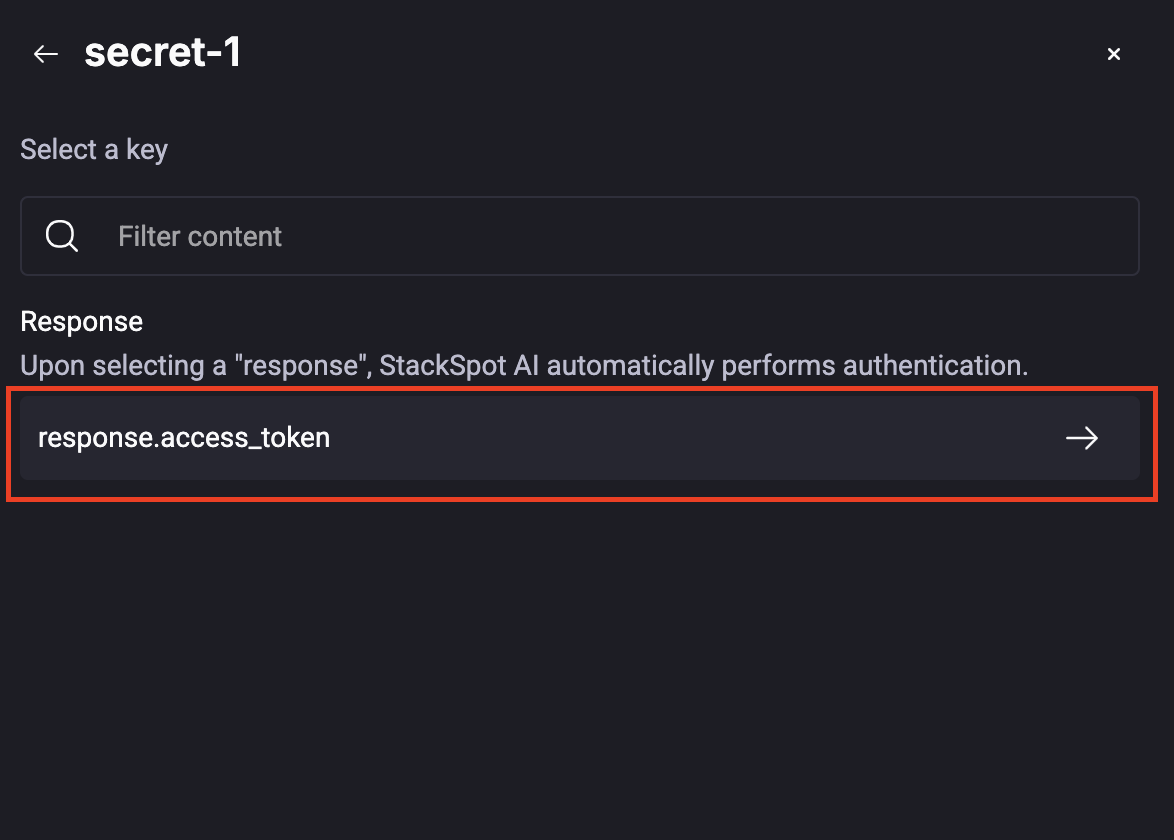
Using Client Credentials allows for secure internal authentication at the endpoint. You will receive both the authorization and access tokens upon selecting the Secret.
- Key/Value
- Add a Name.
- Add the Key and Value.
- Add Expiration date (Optional).
Step 3. Click the 'Create and add' button.
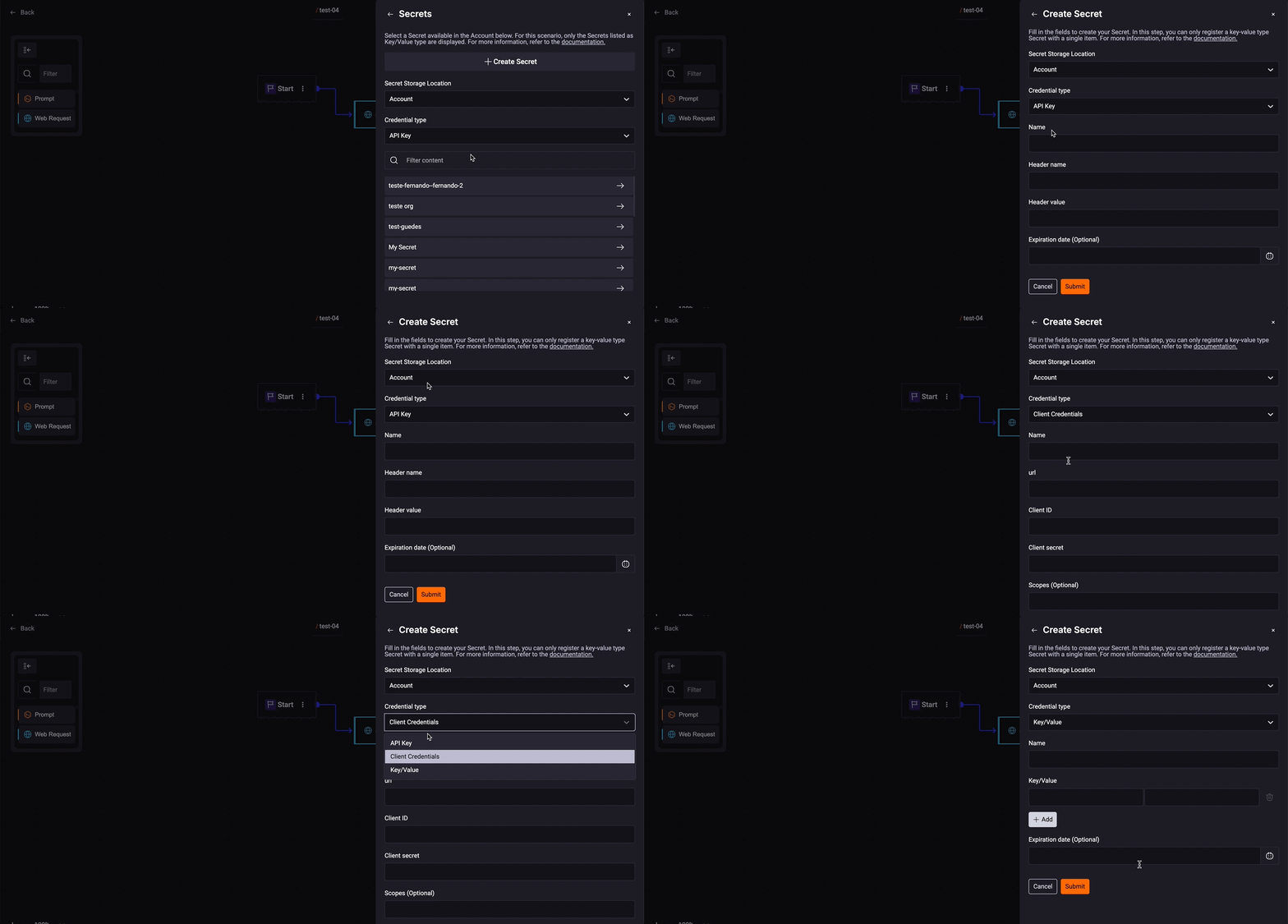
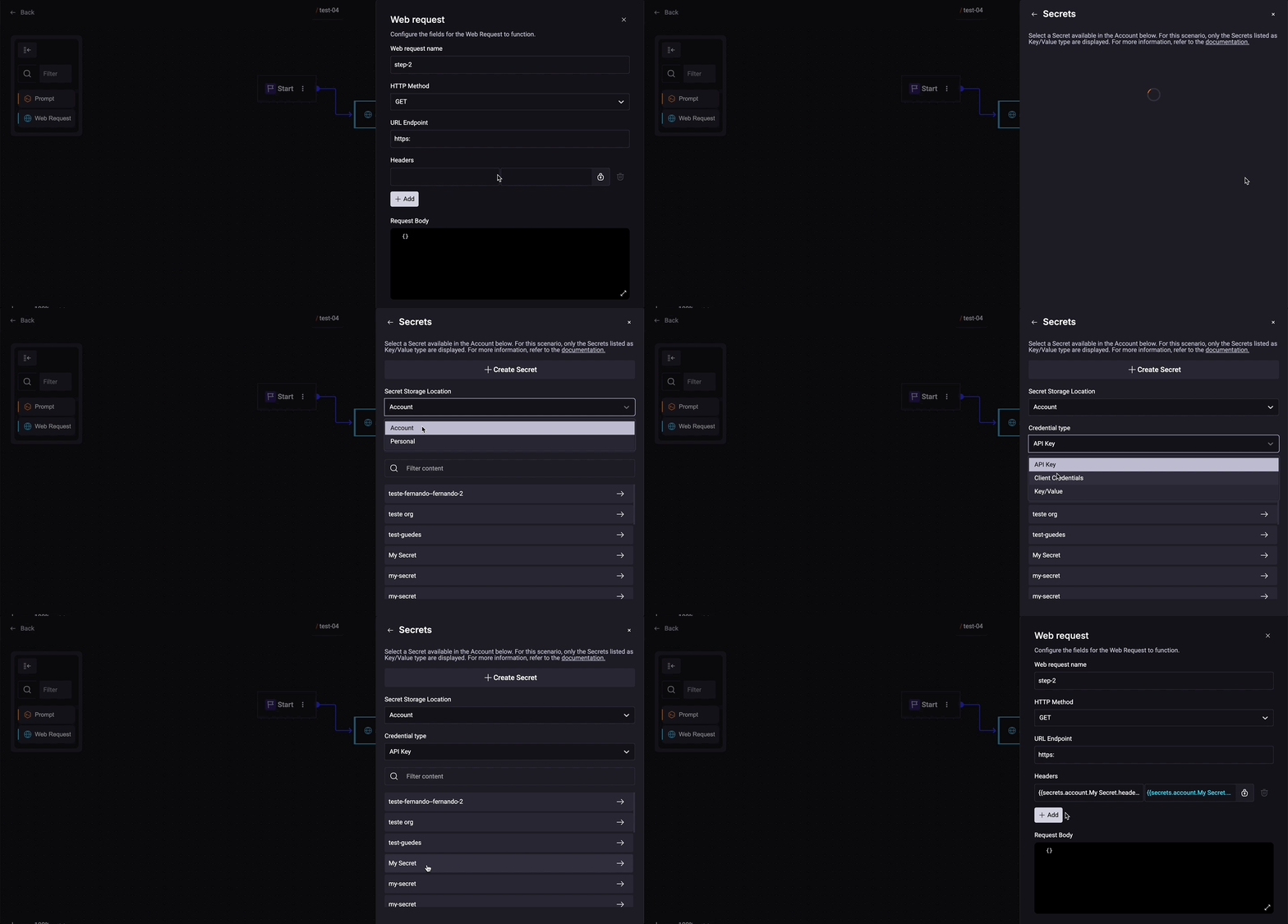
Example:
When you add a Quick Command Web Request:
- Select a method;
- Set the Endpoint. For example: https://api.github.com/repos/{owner}/{repo}/issues
- Add the headers;
| Key | Value |
|---|---|
| Accept | application/vnd.github+json |
| Authorization | Bearer seu_token |
- Change the final step answer.
See below:

2. Choose Existing Secret
Step 1. In the Remote Quick Command (Web Request), in the Headers section, click the Secret button;
Step 2. In the section Secret Storage Location, choose:
- Account: Secrets available on the Account
- Personal: Your secret.
Step 3. Choose the Secret Type (API Key, Client Credentials, Key/Value);
Step 4. Select an available Secret.
If it is a Client Credential one, click on the Response, see the example:
Rules and scenarios for Secrets on Remote Quick Command
There are some rules regarding the Secrets. See some scenarios where you might get an error message.
1. Create a new Quick Command with Secrets
When you create a Quick Command and select secrets, the system checks access using the Account API. If any Secret is denied, the creation will be blocked, and you will see an error message.
2. Update a Quick Command with Personal Secrets
When updating a shared Quick Command, the update is blocked if any new Secret is personal, and an error is returned. You cannot share a Quick Command that contains a personal Secret.
3. Fork a Quick Command with Personal Secrets
When you create a new Quick Command by forking, any personal Secrets from the original command are removed. The new Quick Command does not get any personal Secrets from the original one.
4. Sharing or Publishing Quick Command with Secrets
You cannot share or publish a Quick Command if it has personal secrets. If you try, you will see an error message. You can only share a Quick Command when there are no personal Secrets. If you want to share or publish on the Account, it must be the Account Secret.
5. Execute a Quick Command in the IDE or Portal
See below if you can execute a QC in the IDE/Portal: If it has Secrets: The command will be executed using the StackSpot AI backend service. If it has no secrets: It executes the command locally (Secrets are never returned to the IDE or Portal).