Troubleshooting
What is troubleshooting?
This section lists common errors users face and provides clear solutions to help you fix them quickly. If you have trouble logging in, encounter proxy or SSL errors, or deal with extension issues, you can find solutions here to resolve these problems and continue working smoothly.
Error 407, proxy issue
Solution
This error indicates a problem with the proxy settings. You need to configure the proxy settings in your IDE. Follow these steps.
- Configuring Proxy Settings in VSCode
Step 1. Open VSCode Settings.
- Open Visual Studio Code;
- Click on the gear icon in the bottom-left corner of the window;
- Select Settings from the menu, or press
Ctrl + ,(Windows/Linux) orCmd + ,(Mac) to open the settings directly.
Step 2: Search for Proxy Settings
- In the Settings tab, use the search bar at the top to search for ’proxy’;
- You will see several proxy-related settings.
Step 3: Configure HTTP Proxy
- Look for the setting
Http: Proxy; - Click the Edit in settings.json link to open the
settings.jsonfile; - Add or modify the following line in the
settings.jsonfile:
"http.proxy": "http://<proxy-server>:<port>"
Error: SSL error
Solution
This error indicates a problem with the SSL configuration. Please check your network settings or contact support for further assistance.
- Handling SSL Errors in VSCode
Step 1. Open VSCode settings.
- Open Visual Studio Code.
- Click on the gear icon in the window's bottom-left corner.
- Select Settings from the menu, or press
Ctrl + ,(Windows/Linux) orCmd + ,(Mac) to open the settings directly.
Step 2. Search for SSL Settings
- In the Settings tab, use the search bar at the top to search for ’SSL’;
- You will see several settings related to SSL configuration.
Step 3. Turn off Proxy Strict SSL (Optional)
- If you are behind a proxy using a self-signed certificate or encountering SSL issues, you can turn off strict SSL. To do this, add the following line to the
settings.jsonfile:
"http.proxyStrictSSL": false
Error: I have problems with my Visual Code login, or the extension doesn't start
Solution
- Sign out and log in again.
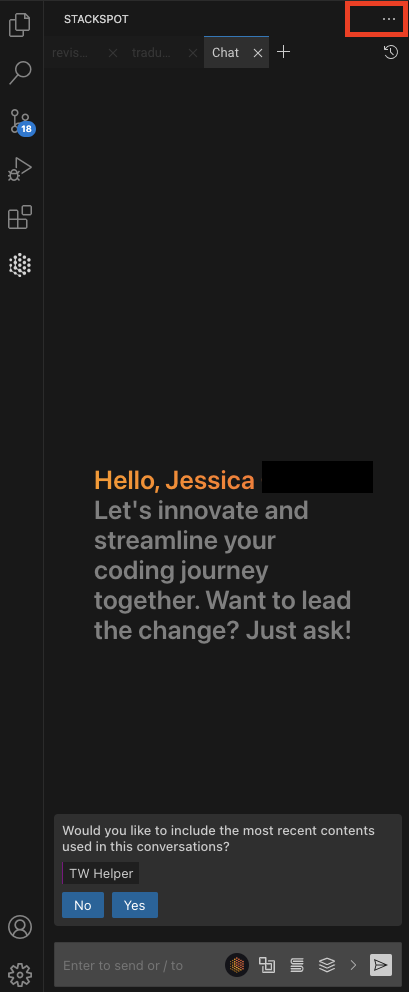
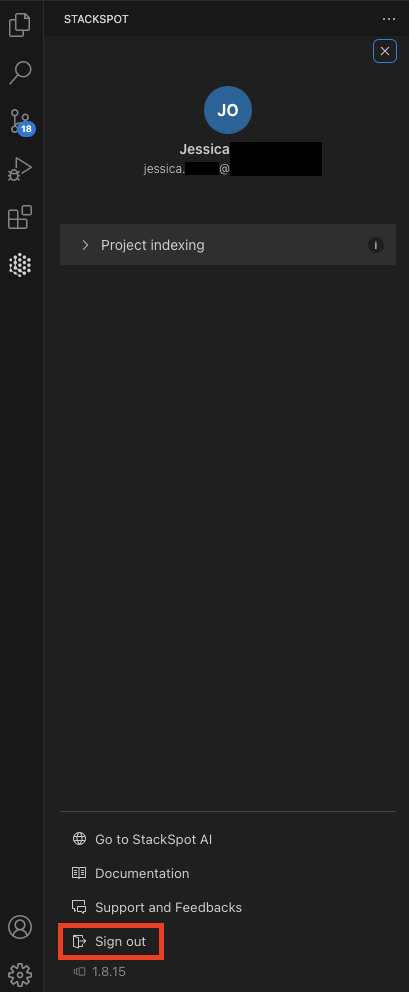
- Press Ctrl/Cmd + Shift + P and type
Run StackSpotAI Doctorto use it.
Error: Invalid parameter: redirect_uri
When I log in on VSCode, I receive this error.
Solution
-
If the VSCode version is 1.0.4, update to the 1.0.5 version.
-
Register the Client_id. Please reach out to your administrator.
Error: Menu item references a command stackspot.quickCommand
Solution
It may happen when you have more than one version installed in your IDE. Uninstall all StackSpot AI extensions and install them again via the Extension Store.
Error: CODEBUDDY_1044_QUICK_COMMAND_RATE_LIMIT_EXCEEDED
Solution
StackSpot AI has limits for executing Remote Quick Commands:
- 100 uses per day if you are using a Personal Access Token.
- 3000 uses per day if you use a Service Credential.
If you are an Account Holder, create a Service Credential with 'execute' permission on the Quick Commands IDE resource. Learn more about customize Execution Limits.
Error: CODEBUDDY_8000_ACCOUNT_API_ERROR
- Failure to integrate with IAM (Identity and Access Management) while creating or deleting a resource.
- Inconsistencies in your user's access and permission settings within IAM.
Solution
1. Check IAM Permissions:
- Confirm that the user has the correct permissions to create or delete resources in IAM.- Verify that the permissions are correctly associated with creating or deleting the resource.
2. Contact Support:
- If the issue persists, contact StackSpot support.
- Provide the error code CODEBUDDY_8000_ACCOUNT_API_ERROR and include details about the resource being created or deleted. Support will assess potential inconsistencies in access configurations and permissions within IAM.